Cloud Backup vs Local Backup: Which is Safer in 2026?

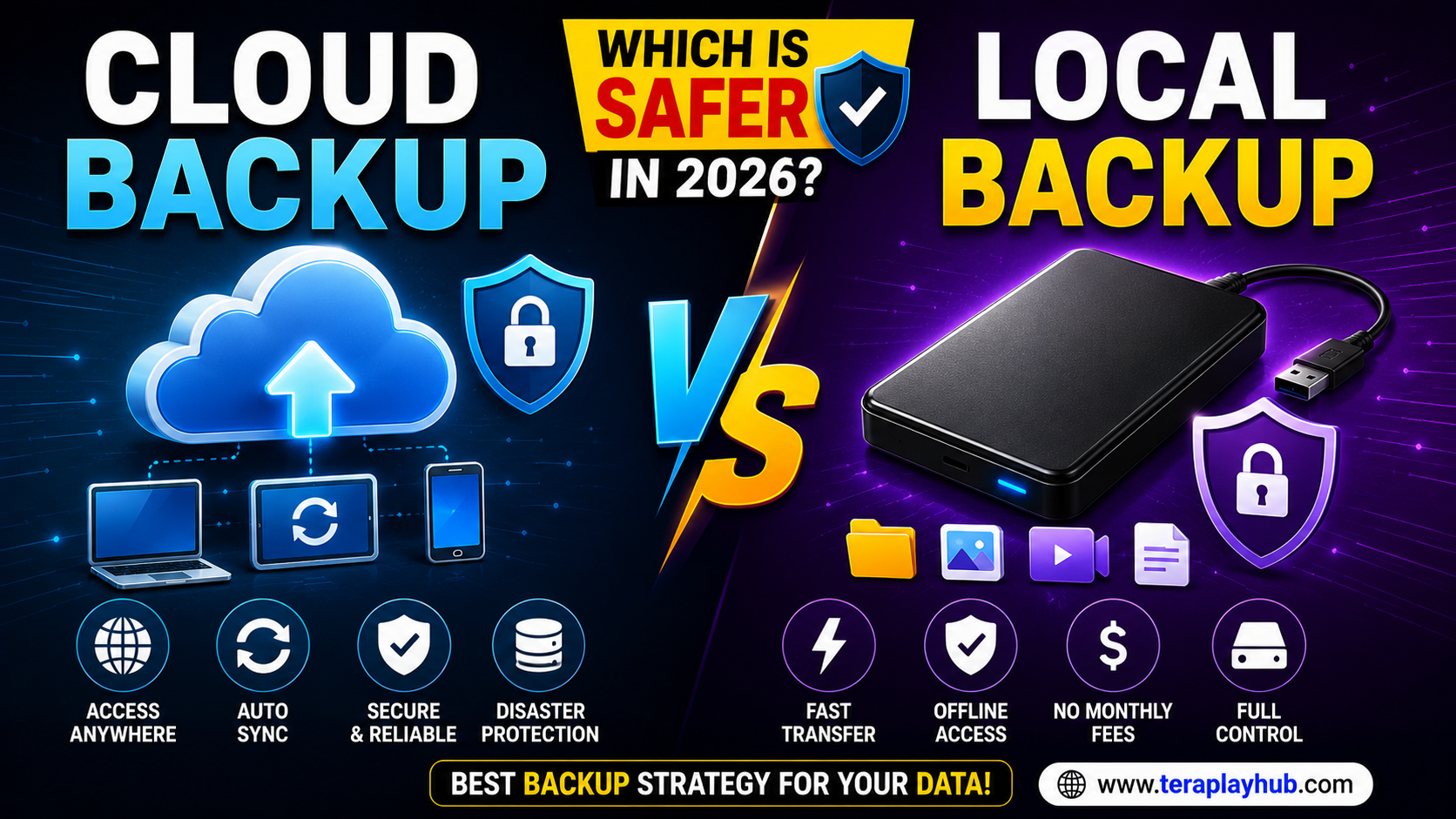
Cloud Backup vs Local Backup: Which is Safer in 2026?
Data has become one of the most valuable assets in our digital lives.
Today, people store important information such as:
- Family photos
- Videos
- Work documents
- Financial records
- School projects
- Business files
Losing this data can be stressful and sometimes impossible to recover.
That is why having a reliable backup system is more important than ever in 2026.
When it comes to protecting files, most people choose one of two options:
Cloud Backup
or
Local Backup
But which one is actually safer?
In this complete beginner-friendly guide, we'll compare cloud backup and local backup in detail, helping you choose the best solution for your needs.
Everything is explained in simple language.
What is a Backup?
A backup is simply a copy of your important files stored somewhere safe.
If your original files are:
- Deleted
- Damaged
- Lost
- Stolen
- Corrupted
you can restore them from the backup.
A good backup system protects you from unexpected problems.
What is Cloud Backup?
Cloud backup stores your files on remote servers managed by a cloud provider.
Examples include:
- Cloud storage platforms
- Online backup services
- Business cloud systems
Your files are uploaded through the internet and stored in secure data centers.
How Cloud Backup Works
The process is simple:
- Select files
- Upload them to cloud storage
- Files are stored remotely
- Access them anytime through the internet
Many services offer automatic backup options.
Advantages of Cloud Backup
Cloud backup has become extremely popular for several reasons.
1. Access Files Anywhere
One of the biggest advantages is convenience.
You can access files from:
- Android phones
- iPhones
- Tablets
- Laptops
- Desktop computers
as long as internet access is available.
2. Protection Against Hardware Failure
If your device breaks:
- Laptop failure
- Hard drive crash
- Phone damage
your cloud backup remains safe.
3. Automatic Backups
Most cloud services support:
- Scheduled backups
- Real-time syncing
- Automatic uploads
This reduces the risk of forgetting to create backups.
4. Disaster Protection
Cloud data remains protected even if:
- Your computer is stolen
- Your house experiences damage
- Hardware is lost
The backup exists in a remote location.
Disadvantages of Cloud Backup
Cloud backup is not perfect.
1. Requires Internet Access
Without internet:
- Uploading files becomes difficult
- Restoring files may be slower
Large backups can take significant time.
2. Subscription Costs
Many cloud services charge monthly or yearly fees.
The more storage you need, the higher the cost.
3. Privacy Concerns
Although major providers use strong security measures, some users prefer not to store sensitive data online.
What is Local Backup?
Local backup stores copies of files on physical devices.
Examples include:
- External hard drives
- USB flash drives
- NAS devices
- Secondary internal drives
Files remain under your direct control.
How Local Backup Works
- Copy files manually
- Save them to storage device
- Store device safely
No internet connection is required.
Advantages of Local Backup
Local backups offer several important benefits.
1. Faster Backup Speed
Large files transfer much faster using:
- USB 3.0
- USB-C
- SSD drives
compared to internet uploads.
2. No Internet Required
Files can be:
- Backed up
- Restored
- Accessed
without any internet connection.
3. Complete Control
You control:
- Storage location
- Access permissions
- Physical security
This appeals to privacy-focused users.
4. One-Time Cost
After purchasing storage hardware:
- No monthly fees
- No recurring subscriptions
This can save money over time.
Disadvantages of Local Backup
Local backup also has risks.
1. Hardware Failure
Storage devices can fail unexpectedly.
Examples include:
- Hard drive crashes
- SSD failures
- USB corruption
Without additional backups, data may be lost.
2. Theft or Physical Damage
Local backups are vulnerable to:
- Theft
- Fire
- Floods
- Accidents
Physical disasters can destroy both original and backup copies.
3. Manual Maintenance
Many users forget to:
- Update backups
- Verify files
- Create new copies
This increases risk.
Security Comparison
Security is often the biggest concern.
Let's compare both methods.
Cloud Backup Security
Modern cloud providers typically offer:
- Encryption
- Secure authentication
- Data redundancy
- Multiple data centers
These features improve protection significantly.
Local Backup Security
Local storage security depends on the user.
Protection may include:
- Password protection
- Drive encryption
- Physical security
The safety level depends on how well backups are managed.
Which is Safer Against Hardware Failure?
Winner: Cloud Backup
Cloud backup stores data away from your device.
Even if hardware fails completely, your files remain accessible.
Which is Safer Against Theft?
Winner: Cloud Backup
Stolen devices do not affect cloud-stored backups.
Local backups can be stolen along with the original device.
Which is Faster?
Winner: Local Backup
External SSDs and hard drives are usually much faster than internet uploads.
Especially for:
- Large videos
- Photo collections
- 4K media files
Which is Better for Privacy?
Winner: Local Backup
Privacy-focused users often prefer local storage because files remain under direct control.
Cost Comparison
| Factor | Cloud Backup | Local Backup |
|---|---|---|
| Initial Cost | Low | Higher |
| Ongoing Cost | Subscription | None |
| Scalability | Easy | Hardware dependent |
| Maintenance | Automatic | Manual |
Each approach has different financial considerations.
Best Backup Strategy in 2026
Most experts recommend combining both methods.
This approach is called:
Hybrid Backup
Hybrid Backup Benefits
Store files:
Locally
for fast access
and
In the Cloud
for disaster protection
This provides the best balance of:
- Security
- Convenience
- Reliability
The 3-2-1 Backup Rule
Many professionals follow the famous:
3-2-1 Backup Strategy
Keep:
- 3 copies of data
- 2 different storage types
- 1 copy offsite
This dramatically reduces data loss risk.
Best Users for Cloud Backup
Cloud backup is ideal for:
- Students
- Remote workers
- Travelers
- Families
- Small businesses
Anyone needing access across multiple devices benefits greatly.
Best Users for Local Backup
Local backup is ideal for:
- Video editors
- Photographers
- Privacy-focused users
- Large media collectors
who need fast local access.
Common Backup Mistakes
Avoid these mistakes:
- Having only one backup
- Never testing backups
- Ignoring updates
- Using old storage devices
- Forgetting password protection
These mistakes can lead to data loss.
Frequently Asked Questions
Is cloud backup safe in 2026?
Yes. Reputable providers use advanced security and encryption systems.
Can local backups fail?
Yes. Hard drives and storage devices can fail unexpectedly.
Which backup method is cheaper?
Local backup may be cheaper long-term because it usually requires only a one-time hardware purchase.
Should I use both cloud and local backup?
Yes. A hybrid backup strategy provides the best overall protection.
Final Verdict
Both cloud backup and local backup have strengths and weaknesses.
Cloud backup offers:
- Convenience
- Automatic syncing
- Disaster protection
- Anywhere access
Local backup offers:
- Faster performance
- Greater privacy
- Offline access
- Long-term cost savings
For most users in 2026, the safest approach is not choosing one or the other.
Instead, combine both methods using a hybrid backup strategy.
This provides the highest level of protection against:
- Hardware failure
- Accidental deletion
- Cyber threats
- Theft
- Natural disasters
A reliable backup system today can save years of memories and important data tomorrow.
Most Popular Posts

How to Use TeraBox on Smart TV (Samsung, Android TV & Fire TV)
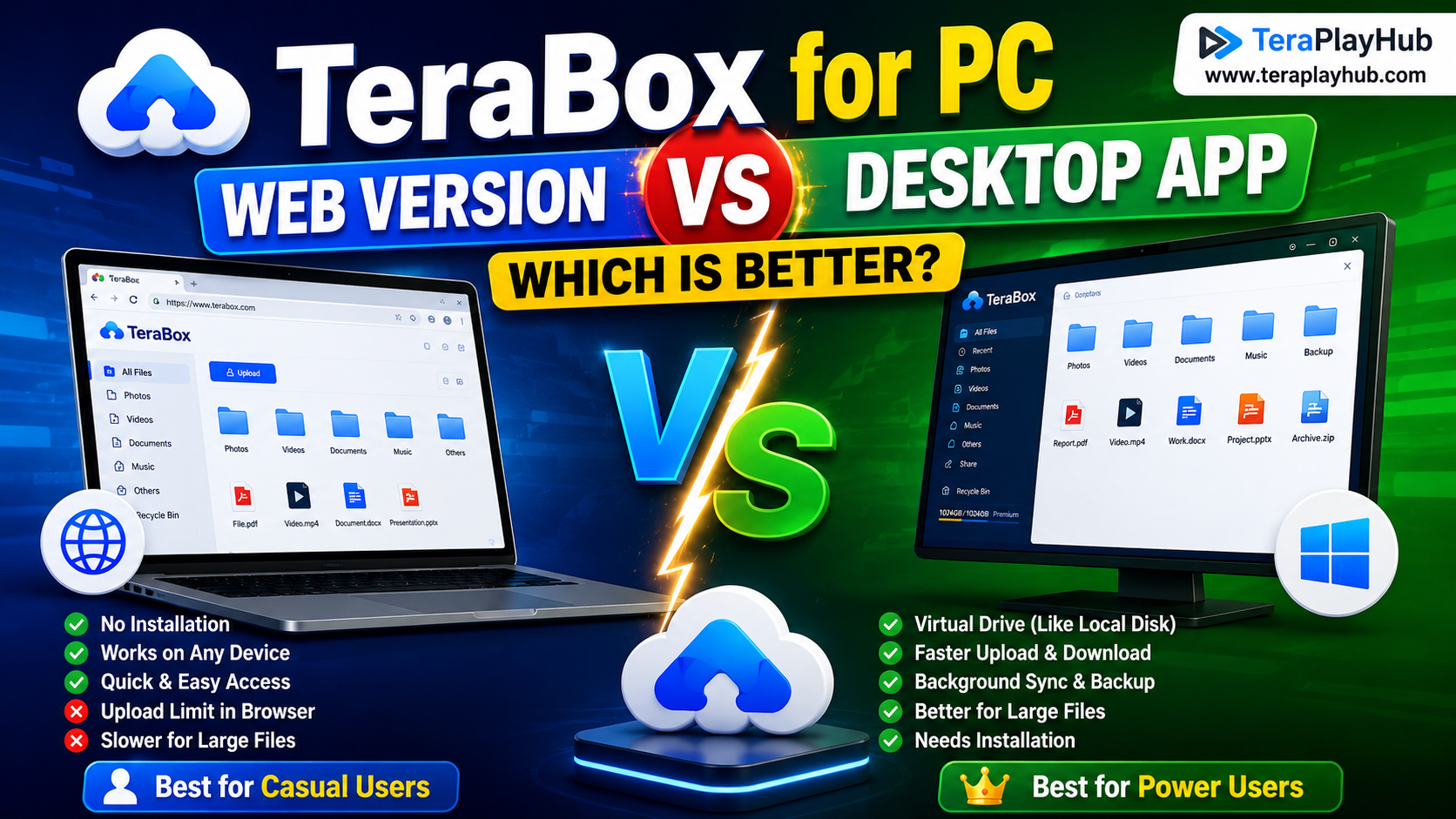
TeraBox for PC: Web Version vs Desktop App (Complete 2026 Comparison Guide)
TeraBox Storage Full? How to Clean Up and Manage 1TB Data Efficiently
How to Share TeraBox Files Safely in 2026 (Private Links, Passwords & Security Tips)
Fix Video Audio Codec Problems on Android & Windows (2026)