TeraBox Storage Full? How to Clean Up and Manage 1TB Data Efficiently


TeraBox Storage Full? How to Clean Up and Manage 1TB Data Efficiently
It sounds impossible to fill 1TB of cloud storage, but after months of storing 4K videos, phone backups, movies, screenshots, and downloaded files, many TeraBox users suddenly receive storage full warnings.
The good news is that most storage problems can be fixed without upgrading your account. Proper file management and cleanup can free hundreds of gigabytes quickly.
1. Find Large Files First
Large files consume storage faster than anything else.
Common examples include:
- 4K video recordings
- Movie collections
- ZIP archives
- Old backups
- APK files
- Screen recordings
If you use the TeraBox desktop app, sort files by size and remove unnecessary large content. Many users discover forgotten 10GB–20GB files they no longer need.
2. Empty the Recycle Bin
Deleting files alone does not instantly free space.
TeraBox keeps deleted files inside the recycle bin temporarily:
- Free users: around 10 days
- Premium users: longer retention period
These files still count toward your storage quota.
How to Fix It
- Open TeraBox
- Go to Recycle Bin
- Permanently delete unwanted files
- Refresh your storage dashboard
This often restores a large amount of storage immediately.
3. Remove Duplicate Photos and Videos
Phone auto backup frequently creates duplicate media files.
Examples include:
- WhatsApp image copies
- Telegram downloads
- Screenshot duplicates
- Shared album copies
- Multiple backups of the same video
Use duplicate cleaner tools or the TeraBox Space Analyzer feature to identify repeated files safely.
4. Organize Files Into Proper Folders
Disorganized storage creates confusion and unnecessary duplication.
Instead of storing everything together, separate files into folders like:
- Photos
- Movies
- Documents
- Backups
- Work Files
- Personal Media
Better organization improves upload management and file search speed.
5. Disable Unnecessary Auto Backup
Many users unknowingly upload temporary or useless files.
Folders that usually waste cloud storage include:
- Downloads
- Social media cache
- Temporary app data
- Game folders
- Duplicate screenshots
Review your backup settings carefully and disable unnecessary folders.
6. Compress Videos Before Uploading
High-quality videos consume huge amounts of cloud space.
Before uploading:
- Compress videos using HandBrake
- Convert videos to H.265 format
- Reduce unnecessary bitrate
Compression can reduce file size by 40%–70% while maintaining good quality.
7. Stream Instead of Storing Everything
Many users permanently store videos they only watch once.
A better strategy is:
- Stream online when possible
- Delete watched content
- Keep only important files archived
This helps maintain long-term storage efficiency.
8. Monitor Storage Every Month
A simple monthly cleanup routine prevents future storage problems.
Recommended Monthly Checklist
- Delete duplicate files
- Empty recycle bin
- Remove temporary downloads
- Compress old videos
- Organize folders
- Review backup settings
Regular maintenance keeps your TeraBox account fast and organized.
Final Thoughts
TeraBox offers generous free cloud storage, but poor organization can quickly fill even 1TB of space.
By removing duplicate files, clearing the recycle bin, compressing large videos, and managing backups properly, users can maintain smooth cloud performance without needing expensive upgrades.
Good storage habits improve speed, organization, and overall cloud experience.
Most Popular Posts

How to Use TeraBox on Smart TV (Samsung, Android TV & Fire TV)

TeraBox for PC: Web Version vs Desktop App (Complete 2026 Comparison Guide)
How to Share TeraBox Files Safely in 2026 (Private Links, Passwords & Security Tips)
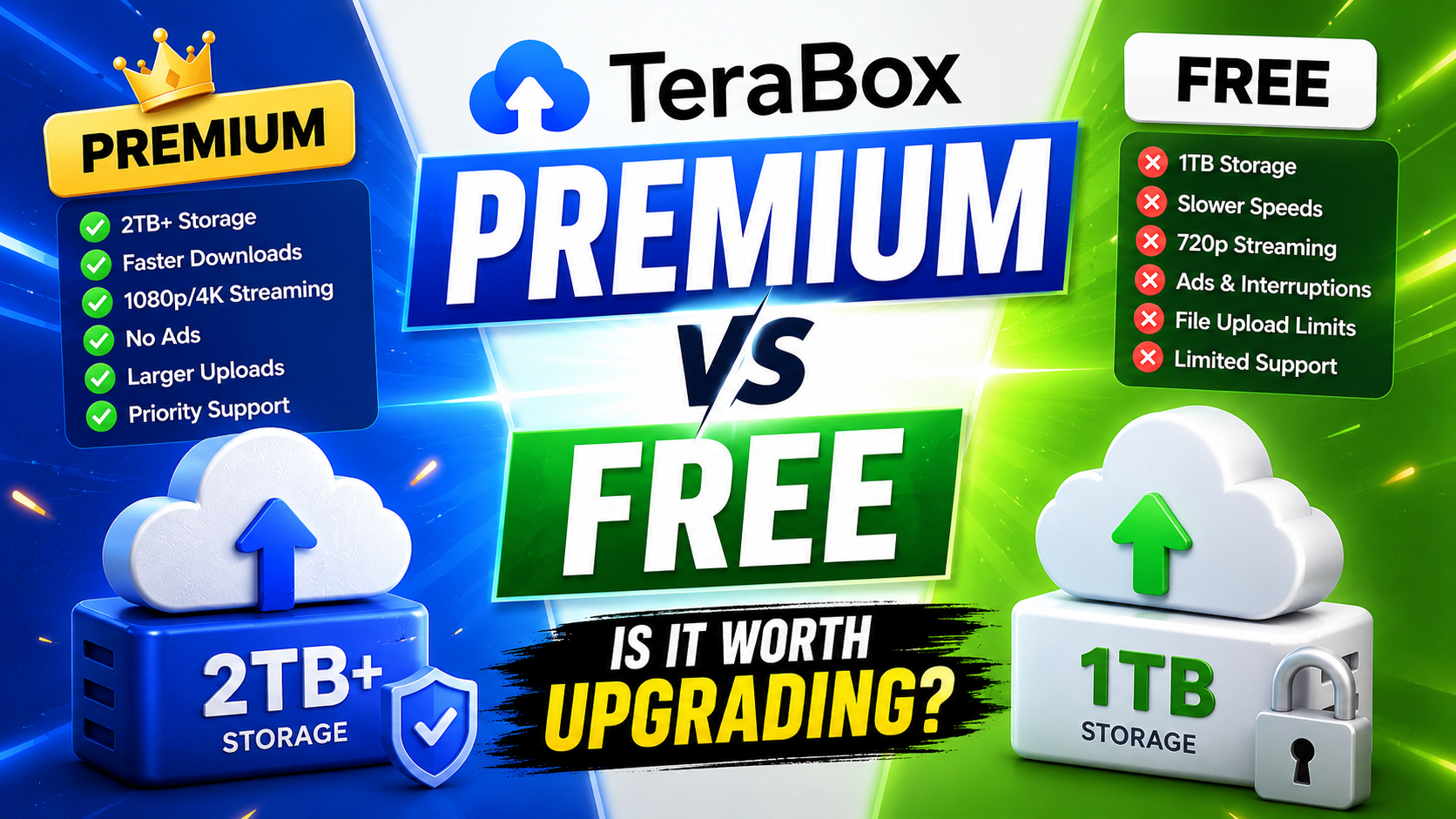
TeraBox Free vs Premium: Is Upgrading Really Worth It in 2026?

Google Drive vs TeraBox Speed Test (2026 Real Comparison)