Fix Video Audio Codec Problems on Android & Windows (2026)

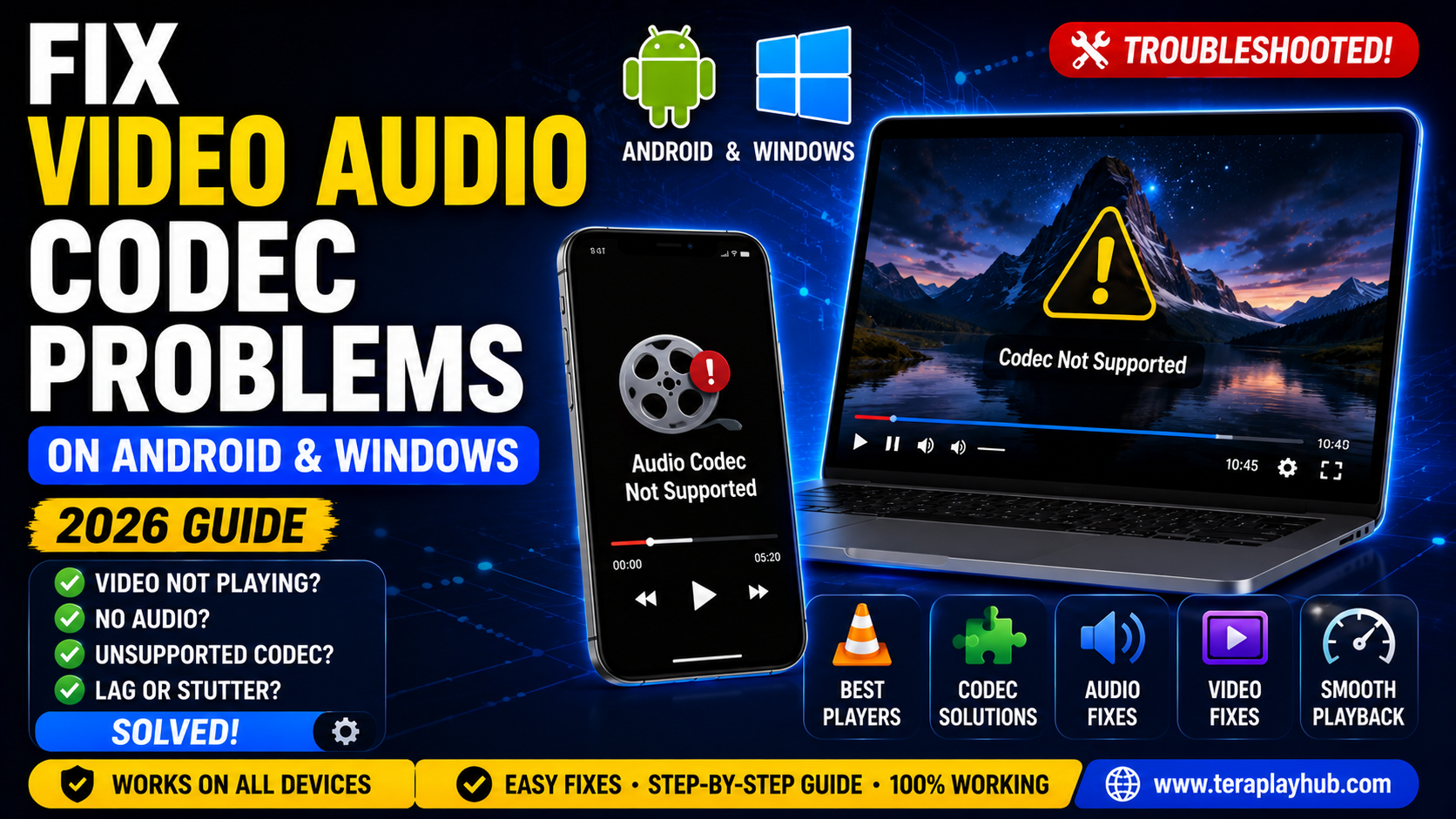
Fix Video Audio Codec Problems on Android & Windows (2026)
One of the most frustrating media playback problems is seeing messages like:
- Audio codec not supported
- Video format unsupported
- Cannot play this file
- No sound during playback
- Black screen with audio
- Video lag or stutter
These problems usually happen because of missing or unsupported codecs.
Codec issues are extremely common on:
- Android phones
- Windows PCs
- Smart TVs
- Media players
especially when playing modern HD or 4K video files.
The good news is that most codec problems are easy to fix.
This complete beginner-friendly guide explains how to fix video and audio codec problems on Android and Windows in 2026.
Everything is explained in simple language.
What is a Codec?
Codec stands for:
Compressor-Decompressor
A codec helps devices:
- Encode video/audio
- Decode video/audio
- Play media files correctly
Without the correct codec, your device cannot properly understand the media file.
Simple Example
Imagine a video file is written in a language your media player does not understand.
The codec acts like a translator.
Without that translator:
- Video may not open
- Audio may not play
- Playback may lag
Common Codec Error Messages
Here are the most common codec-related errors users face.
| Error Message | Meaning |
|---|---|
| Audio Codec Not Supported | Audio format unsupported |
| Video Codec Missing | Video decoder unavailable |
| Cannot Play This File | Media format unsupported |
| No Sound During Playback | Missing audio codec |
| Black Screen | Unsupported video codec |
These issues happen on both Android and Windows devices.
Why Codec Problems Happen
Codec problems usually occur because:
- Old media player
- Unsupported format
- Missing decoder
- Corrupted file
- Weak hardware
- Outdated software
Modern video formats are becoming more advanced every year.
Older devices sometimes struggle with them.
Most Common Video Codecs in 2026
| Codec | Usage |
|---|---|
| H.264 | Most common HD videos |
| H.265 (HEVC) | 4K and compressed videos |
| AV1 | Modern streaming platforms |
| VP9 | YouTube and web streaming |
Most Common Audio Codecs
| Audio Codec | Usage |
|---|---|
| AAC | Mobile devices |
| MP3 | Universal audio |
| AC3 | Movies and surround sound |
| DTS | High-quality cinema audio |
Some phones and PCs do not support advanced audio codecs by default.
Best Solution: Use a Better Media Player
The easiest fix for most codec problems is switching to a modern media player.
Best Media Players for Android
1. VLC Media Player
VLC supports almost every codec automatically.
Advantages
- Free
- Lightweight
- Built-in codecs
- Smooth playback
- Subtitle support
VLC fixes most codec issues instantly.
2. MX Player
MX Player is excellent for Android users.
Features
- Hardware acceleration
- Custom codec support
- Smooth HD playback
Important Tip
MX Player sometimes requires custom codec packs for advanced formats.
Best Media Players for Windows
1. VLC Media Player
VLC remains one of the best solutions for Windows codec issues.
It includes:
- Built-in codec library
- 4K playback support
- Advanced subtitle handling
Most unsupported file problems disappear after switching to VLC.
2. PotPlayer
PotPlayer supports:
- Modern codecs
- GPU acceleration
- Advanced playback settings
It performs extremely well for HD and 4K videos.
3. MPC-HC (Media Player Classic)
A lightweight media player with strong codec support.
Perfect for older PCs.
How to Fix Codec Problems on Android
Let’s go step-by-step.
Method 1: Update Your Media Player
Old versions may not support newer codecs.
Fix
Update apps from:
- Google Play Store
- Official websites
This improves compatibility.
Method 2: Enable Hardware Acceleration
Hardware acceleration improves playback performance.
VLC Steps
- Open VLC
- Go to Settings
- Open Video Settings
- Enable: Hardware Acceleration
MX Player Steps
- Open MX Player
- Go to Decoder Settings
- Enable:
- HW Decoder
- HW+ Decoder
This helps fix lag and playback issues.
Method 3: Install Custom Codec Packs
Some formats require additional codec support.
MX Player allows external codec installation.
This improves support for:
- DTS
- AC3
- Advanced MKV files
Method 4: Try Another File
Sometimes the problem is not the codec.
The file itself may be:
- Corrupted
- Incomplete
- Poorly encoded
Testing another video helps confirm this.
How to Fix Codec Problems on Windows
Windows users often face codec errors using default media apps.
Method 1: Use VLC Instead of Windows Media Player
Windows Media Player has limited codec support.
VLC supports:
- MKV
- HEVC
- FLAC
- DTS
- AC3
Switching players fixes many issues instantly.
Method 2: Update Windows
Outdated Windows versions may lack modern codec support.
Fix
Go to:
Settings → Windows Update
Install latest updates.
Method 3: Install HEVC Support
Some 4K videos use:
H.265 / HEVC codec
Older systems may not support it.
Modern media players handle HEVC much better.
Method 4: Update GPU Drivers
Graphics drivers affect video decoding performance.
Update:
- NVIDIA drivers
- AMD drivers
- Intel graphics drivers
This improves playback compatibility.
Why Audio Works But Video Does Not
This usually means:
- Audio codec supported
- Video codec unsupported
The media player can decode sound but cannot decode video properly.
Why Video Works But Audio Does Not
This is very common with:
- DTS audio
- AC3 audio
- Unsupported surround sound codecs
Installing better media players usually fixes this.
Codec Problems in MKV Files
MKV files are containers.
They can contain many different codecs inside.
Example:
| Component | Codec |
|---|---|
| Video | H.265 |
| Audio | DTS |
If one codec is unsupported, playback issues happen.
Convert Unsupported Videos
If nothing works, converting the file can help.
Recommended Video Formats
| Format | Compatibility |
|---|---|
| MP4 + H.264 | Excellent |
| AAC Audio | Universal |
These formats work on most devices.
Why 4K Videos Cause More Codec Problems
4K videos require:
- Strong processors
- Modern decoders
- Better GPU performance
Older phones and PCs may struggle.
Best Practices to Avoid Codec Problems
Recommended Tips
- Use VLC or MX Player
- Keep apps updated
- Avoid corrupted downloads
- Use MP4 when possible
- Update device software regularly
These habits prevent many playback issues.
Best Video Format for Maximum Compatibility
If you want videos to work almost everywhere:
Recommended Combination
- MP4 container
- H.264 video codec
- AAC audio codec
This combination is widely supported.
Frequently Asked Questions
What causes codec errors?
Usually unsupported or missing audio/video decoders.
Which media player fixes codec problems best?
VLC Media Player is one of the best solutions.
Why is there sound but no video?
Usually because the video codec is unsupported.
Why is there video but no sound?
The audio codec may not be supported.
Can Android phones play all codecs?
No. Some advanced codecs require special players or hardware support.
Final Words
Video and audio codec problems are very common in 2026 because media formats continue evolving rapidly.
Thankfully, most playback problems can be solved easily by:
- Using modern media players
- Updating apps
- Enabling hardware acceleration
- Installing proper codec support
- Using compatible formats
For most users, switching to VLC or MX Player fixes the issue immediately.
Understanding codecs also helps users avoid future playback problems and choose better video formats.
We hope this detailed troubleshooting guide helped you fix video and audio codec problems on Android and Windows successfully.
Most Popular Posts
How to Use TeraBox on Smart TV (Samsung, Android TV & Fire TV)
TeraBox for PC: Web Version vs Desktop App (Complete 2026 Comparison Guide)
TeraBox Storage Full? How to Clean Up and Manage 1TB Data Efficiently
How to Share TeraBox Files Safely in 2026 (Private Links, Passwords & Security Tips)
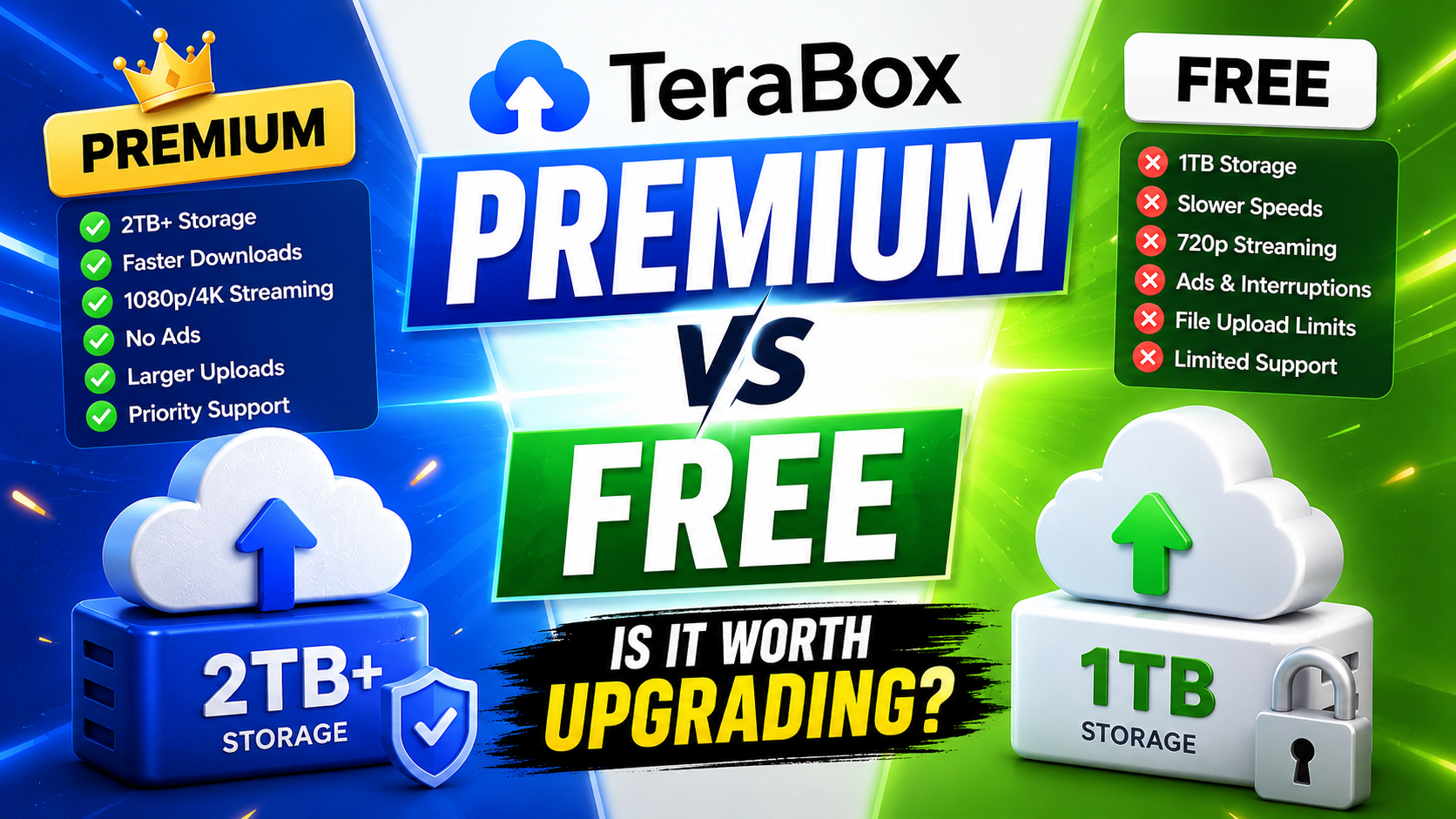
TeraBox Free vs Premium: Is Upgrading Really Worth It in 2026?