How to Fix Slow File Transfer Speed on Android & Windows

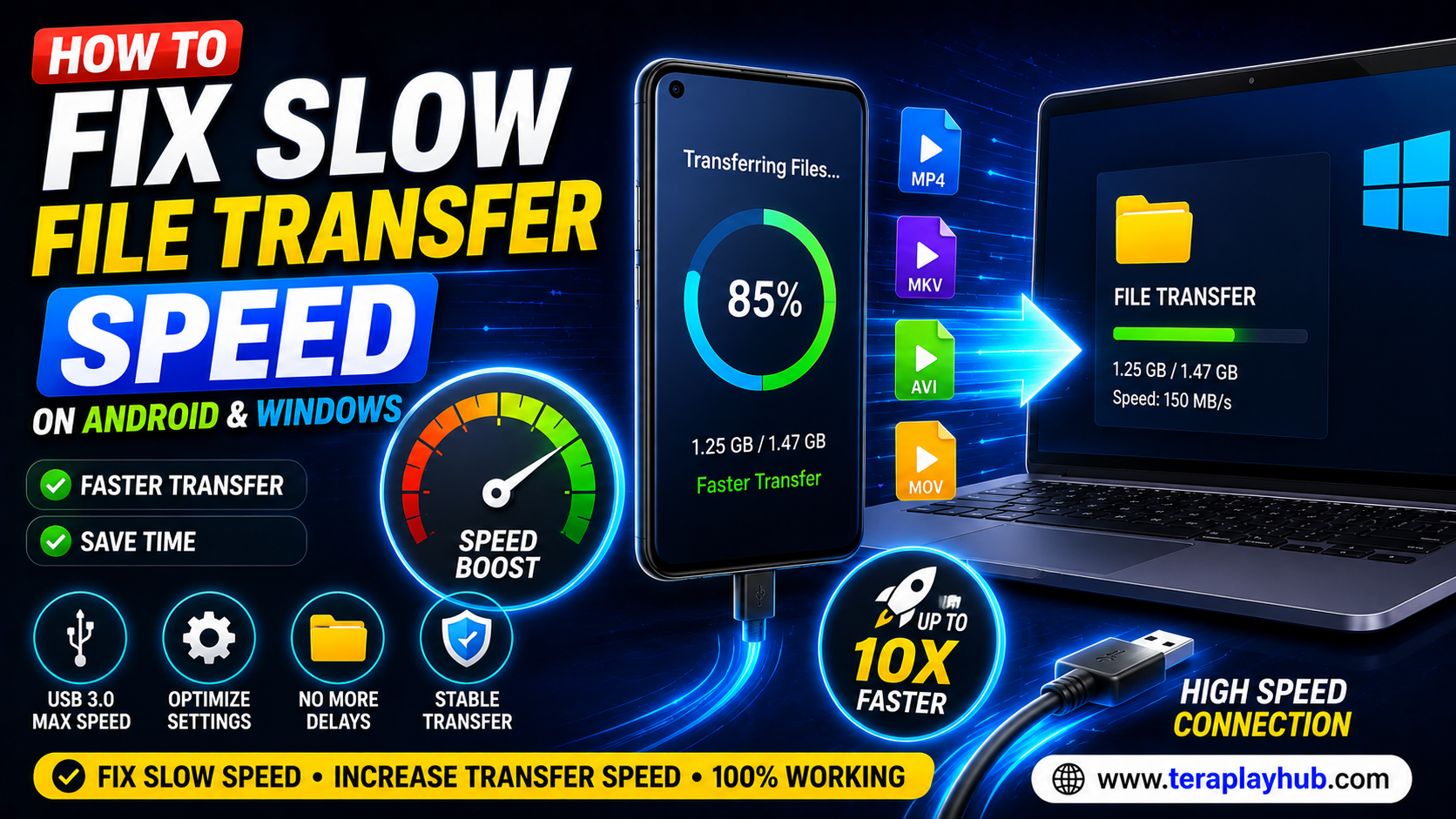
How to Fix Slow File Transfer Speed on Android & Windows
Slow file transfers can be extremely frustrating, especially when moving large files such as:
- Movies
- Videos
- Photos
- Backup files
- Documents
- Software packages
Many users notice that transferring files between Android phones and Windows PCs takes much longer than expected.
Sometimes a transfer that should take a few minutes can take hours.
The good news is that most file transfer speed problems can be fixed easily.
In this complete beginner-friendly guide, you'll learn how to identify the causes of slow file transfers and how to improve transfer speeds on both Android and Windows devices.
Why File Transfers Become Slow
Several factors can affect file transfer performance.
Common causes include:
- Slow USB cables
- Outdated USB ports
- Low storage space
- Background applications
- Corrupted storage devices
- Slow SD cards
- Network issues
- Device overheating
Finding the actual cause helps solve the problem faster.
1. Use a High-Quality USB Cable
One of the most common reasons for slow file transfers is using a poor-quality cable.
Many cheap charging cables only support:
- Charging
- Basic connectivity
They may not support fast data transfer.
Recommended Solution
Use:
- Original manufacturer cable
- USB 3.0 cable
- USB-C high-speed cable
A better cable can dramatically increase transfer speeds.
2. Connect to a USB 3.0 Port
Older USB ports are much slower.
USB Speed Comparison
| USB Type | Maximum Speed |
|---|---|
| USB 2.0 | 480 Mbps |
| USB 3.0 | 5 Gbps |
| USB 3.1 | 10 Gbps |
| USB-C | Up to 20 Gbps |
If your PC supports USB 3.0 or higher, always use those ports.
3. Free Up Storage Space
Both Android phones and Windows PCs perform slower when storage is nearly full.
Recommended Free Space
Keep:
- At least 15% free on Android
- At least 20% free on Windows
This helps storage devices operate efficiently.
4. Close Background Applications
Many apps consume resources while transfers are running.
Examples include:
- Antivirus software
- Video editors
- Cloud sync applications
- Browsers with many tabs
Closing unnecessary programs can improve transfer performance.
5. Restart Both Devices
A simple restart can solve many hidden issues.
Restart:
- Android phone
- Windows computer
This clears temporary system processes and refreshes memory.
6. Check Your SD Card Speed
If files are stored on a memory card, the card itself may be the bottleneck.
Slow SD Card Signs
- Long copy times
- Freezing during transfers
- Random transfer failures
Recommended Cards
Use:
- Class 10
- UHS-I
- UHS-II
for better performance.
7. Disable Unnecessary Sync Services
Cloud services may constantly access files.
Examples:
- OneDrive
- Google Drive
- Dropbox
Temporarily pausing synchronization can improve transfer speed.
8. Update Device Drivers
Outdated drivers may affect USB performance.
Update These Drivers
- USB drivers
- Chipset drivers
- Android drivers
Updated drivers often improve compatibility and stability.
9. Scan for Storage Errors
Storage corruption can reduce performance.
Windows Check Disk
- Open File Explorer
- Right-click drive
- Select Properties
- Choose Tools
- Click Check
This can detect and repair errors.
10. Use Faster Transfer Methods
Sometimes USB isn't the fastest option.
Alternative methods include:
- WiFi transfer apps
- Local network sharing
- Cloud storage
- Nearby Share
- Quick Share
Depending on your setup, these may provide better speeds.
Best Wireless File Transfer Apps
Popular options include:
- Nearby Share
- Quick Share
- LocalSend
- Send Anywhere
These apps simplify file sharing between devices.
Why Large Files Transfer Faster Than Small Files
Many users notice that one large file transfers faster than thousands of small files.
This happens because:
- Each file requires processing
- File system overhead increases
- Metadata must be handled repeatedly
Compressing multiple files into a ZIP archive can improve transfer efficiency.
How to Speed Up Android File Transfers
Try these Android-specific tips:
Enable File Transfer Mode
When connecting via USB:
Choose:
File Transfer (MTP)
instead of:
- Charging Only
- Photo Transfer
Keep Device Unlocked
Some phones reduce transfer performance when locked.
Keep the screen active during large transfers.
Update Android Software
System updates often improve:
- USB performance
- Stability
- Device compatibility
How to Speed Up Windows File Transfers
Use SSD Storage
Solid-state drives are much faster than traditional hard drives.
Disable Real-Time Scanning Temporarily
Some antivirus programs scan every transferred file.
This may slow transfers significantly.
Keep Windows Updated
New updates often improve storage and USB performance.
Common File Transfer Mistakes
Avoid these mistakes:
- Using damaged cables
- Copying to nearly full drives
- Running heavy software during transfers
- Using low-quality SD cards
- Ignoring system updates
These issues often cause major slowdowns.
Best Storage Types for Fast Transfers
| Storage Type | Performance |
|---|---|
| NVMe SSD | Excellent |
| SATA SSD | Very Good |
| USB 3.0 Flash Drive | Good |
| HDD | Moderate |
| Old SD Card | Slow |
Modern SSDs provide the best performance.
Frequently Asked Questions
Why is my Android file transfer so slow?
Usually because of:
- Slow USB cable
- Incorrect USB mode
- Low storage space
- Background applications
Does USB 3.0 improve speed?
Yes. USB 3.0 can be several times faster than USB 2.0.
Can antivirus software slow transfers?
Yes. Real-time scanning sometimes reduces file copy speeds.
Why does my transfer stop randomly?
Possible causes include:
- Faulty cable
- Storage errors
- Device overheating
- Driver issues
Final Verdict
Slow file transfer speeds are usually caused by a few common issues that are easy to fix.
For most users, the biggest improvements come from:
- Using better USB cables
- Connecting to USB 3.0 ports
- Freeing storage space
- Updating drivers
- Closing unnecessary background applications
Small changes can dramatically improve transfer speeds and save a lot of time.
Whether you're moving files between Android and Windows or copying data to external storage, following these tips will help you achieve faster and more reliable file transfers in 2026.
Most Popular Posts

How to Use TeraBox on Smart TV (Samsung, Android TV & Fire TV)
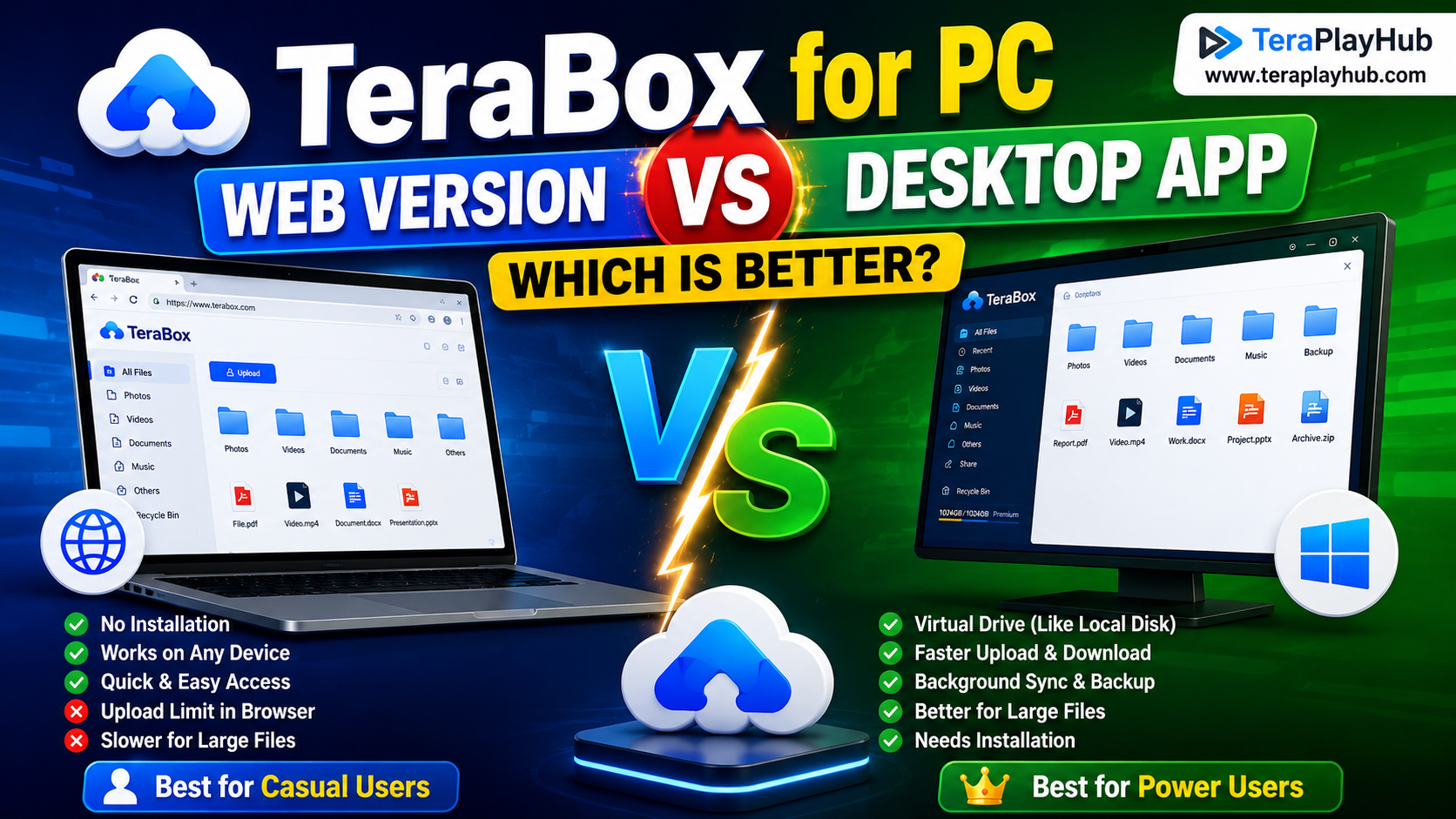
TeraBox for PC: Web Version vs Desktop App (Complete 2026 Comparison Guide)

TeraBox Storage Full? How to Clean Up and Manage 1TB Data Efficiently
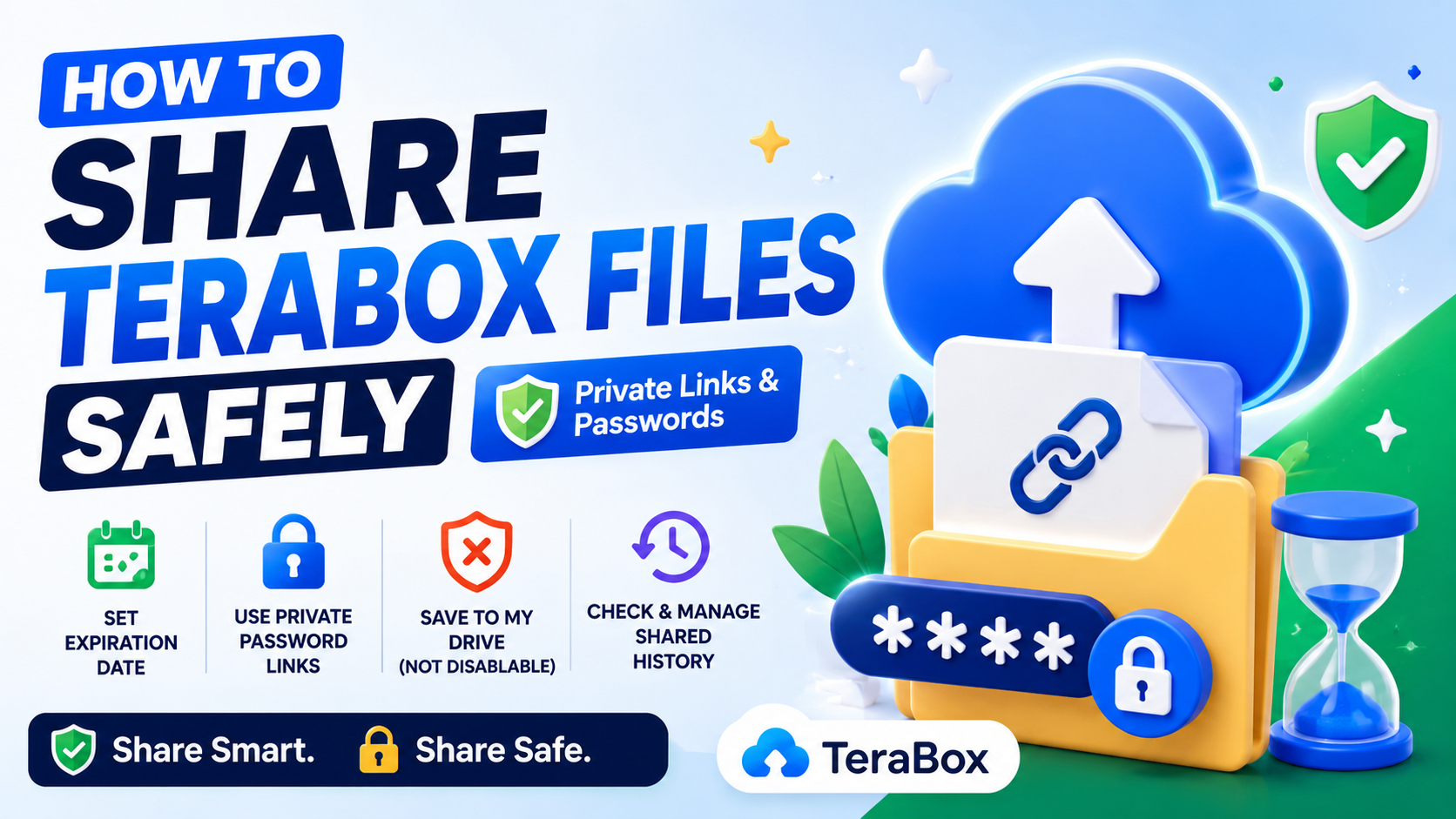
How to Share TeraBox Files Safely in 2026 (Private Links, Passwords & Security Tips)
Fix Video Audio Codec Problems on Android & Windows (2026)