TeraBox for PC: Web Version vs Desktop App (Complete 2026 Comparison Guide)

TeraBox for PC: Web Version vs Desktop App (Complete 2026 Comparison Guide)
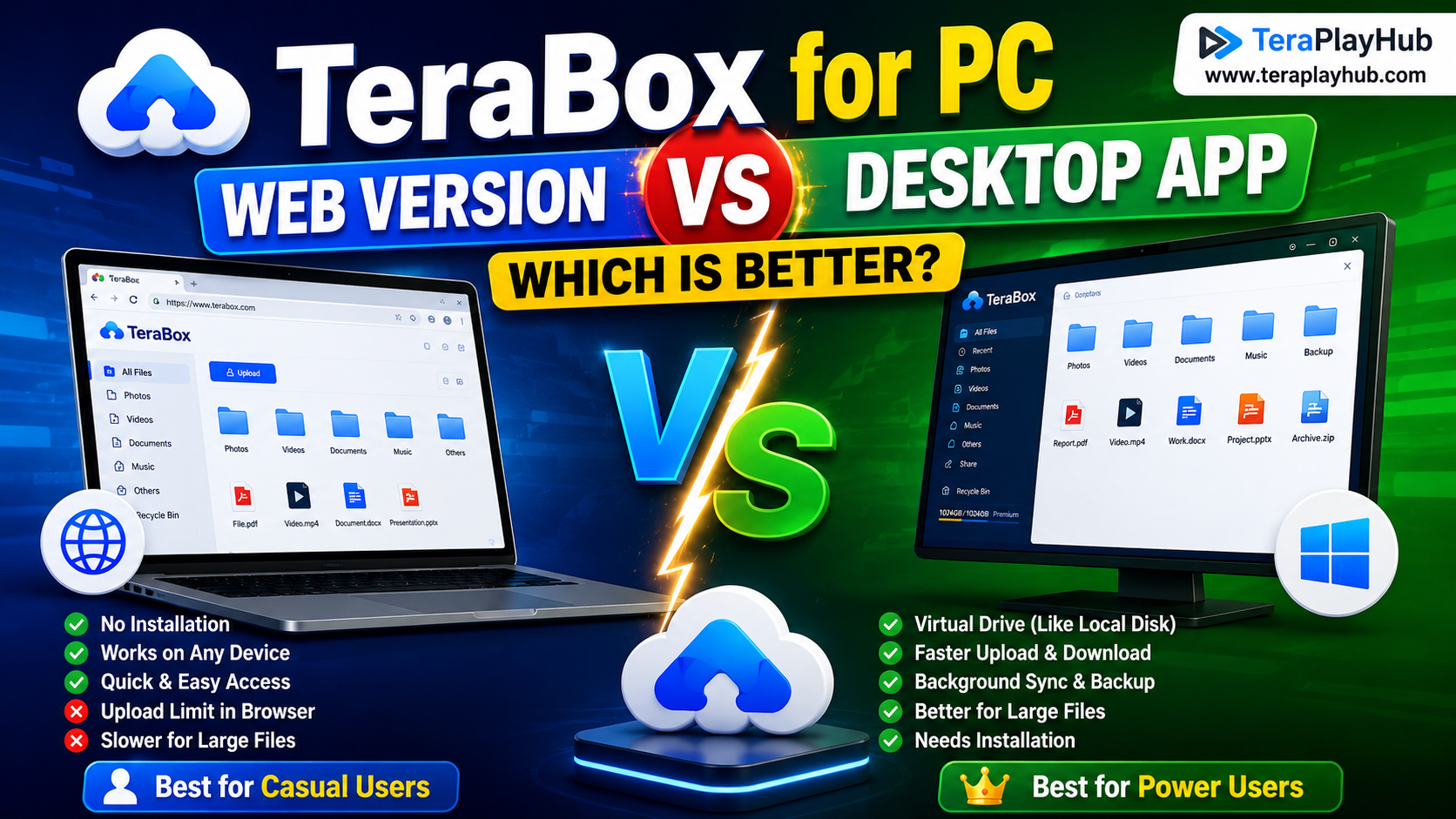
Many TeraBox users wonder whether they should use the browser version or install the official desktop application on their PC.
At first glance, both versions look similar. Both allow uploads, downloads, video streaming, and cloud storage access. However, once you start managing larger files or daily backups, the differences become much more noticeable.
In this guide, we will compare the TeraBox Web Version and Desktop App based on real-world usage, speed, convenience, storage management, and overall performance.
What Is the TeraBox Web Version?
The web version runs directly inside your browser.
You simply open the TeraBox website using:
- Google Chrome
- Microsoft Edge
- Firefox
- Brave
- Opera
- Safari
No installation is required.
This makes it one of the easiest ways to quickly access cloud files from any computer.
Advantages of the TeraBox Web Version
1. No Installation Required
The biggest advantage is simplicity.
You can log into your account instantly from:
- Office computers
- Cyber cafes
- School devices
- Shared family PCs
- Temporary systems
This is especially useful when you do not want to install additional software.
2. Works on Almost Every Operating System
The browser version works well on:
- Windows
- macOS
- Linux
- ChromeOS
This makes it more flexible than the desktop application.
Linux users especially prefer the web version because there is no official Linux desktop client.
3. Faster for Quick Downloads
If you only need to:
- Download a video
- Access a PDF
- Open a shared file
- Watch a short clip
the browser version is usually enough.
There is no setup process or background syncing involved.
4. Lower System Resource Usage
The web version typically consumes fewer background resources compared to the desktop application.
You avoid:
- Background syncing
- Auto scanning
- File indexing
- Startup processes
This helps older computers remain faster.
Disadvantages of the TeraBox Web Version
Despite its convenience, the browser version has limitations.
1. Upload Limitations
Large uploads can become unstable inside browsers.
Problems may include:
- Upload interruptions
- Browser crashes
- Failed uploads
- Session expiration
- Memory limitations
Uploading thousands of files at once is often difficult.
2. Browser Speed Restrictions
Browsers sometimes limit download performance due to:
- Browser memory management
- Network handling limitations
- Multiple open tabs
- Extensions interfering with downloads
This becomes noticeable with very large files.
3. Weak Background Sync Features
The web version is not ideal for automatic backup systems.
You cannot easily:
- Auto-sync folders
- Mirror directories
- Run scheduled uploads
- Keep files continuously updated
Everything is mostly manual.
What Is the TeraBox Desktop App?
The desktop app is the dedicated Windows or macOS application officially provided by TeraBox.
Once installed, it integrates directly with your operating system.
This creates a more complete cloud storage experience similar to Google Drive or OneDrive desktop clients.
Advantages of the TeraBox Desktop App
1. Virtual Drive Integration
One of the most useful features is the virtual drive system.
The application creates a cloud drive directly inside:
- "This PC" on Windows
- Finder on macOS
This allows you to browse cloud files almost like a local hard drive.
You can:
- Drag and drop files
- Copy folders directly
- Move large data easily
- Access storage faster
For power users, this feature is extremely convenient.
2. Better Upload Stability
The desktop app handles uploads much more reliably than browsers.
This is especially important for:
- 4K videos
- Large ZIP files
- Backups
- RAW photos
- Long recordings
The application can resume interrupted transfers more effectively.
3. Background Synchronization
The desktop client supports automatic syncing.
This means folders can upload continuously without manual work.
Common use cases include:
- Photo backup
- Work documents
- School projects
- Video editing files
- Daily backups
Once configured, the app handles everything automatically.
4. Improved Large File Performance
Large downloads usually perform better through the desktop client.
The application is better optimized for:
- Multi-GB files
- Slow internet connections
- Resume support
- Network recovery
This reduces failed downloads significantly.
Disadvantages of the Desktop App
The desktop app is powerful, but it is not perfect.
1. Uses More System Resources
Because the app runs continuously, it may use:
- RAM
- CPU
- Background internet traffic
Older PCs may notice slower startup performance.
2. Requires Installation
Unlike the web version, you must install software.
This may not be possible on:
- Work computers
- School devices
- Shared systems
- Restricted environments
3. Background Sync Can Consume Bandwidth
Auto-sync features may upload files automatically without you noticing.
This can affect:
- Mobile hotspot users
- Limited internet plans
- Slow Wi-Fi connections
Careful sync management is important.
Speed Comparison: Which Is Faster?
In most real-world situations:
- Small downloads → Browser is fine
- Large uploads → Desktop app is better
- Continuous backups → Desktop app wins
- Quick access → Web version is faster
- Multi-file transfers → Desktop app performs better
The desktop application usually handles unstable internet connections more efficiently.
Which Version Is Better for Different Users?
Best for Casual Users
Use the Web Version if you:
- Download occasionally
- Watch shared videos
- Open files quickly
- Use multiple devices
- Avoid installing software
Best for Heavy Users
Use the Desktop App if you:
- Upload large files regularly
- Need automatic backups
- Manage huge folders
- Store work data
- Want better stability
Security Comparison
Both versions use the same TeraBox account security system.
However, desktop users should still:
- Enable two-factor authentication
- Use strong passwords
- Avoid public Wi-Fi
- Log out on shared computers
Browser users should also avoid suspicious extensions that may access downloads.
Final Verdict
Both TeraBox versions are useful, but they serve different types of users.
The browser version is perfect for convenience and quick access.
The desktop application is much better for serious cloud storage management, large uploads, automatic syncing, and long-term backups.
If you only download files occasionally, the web version is usually enough.
But if you use TeraBox daily for storage, backups, or media management, the desktop app provides a much smoother experience overall.
Most Popular Posts

How to Use TeraBox on Smart TV (Samsung, Android TV & Fire TV)
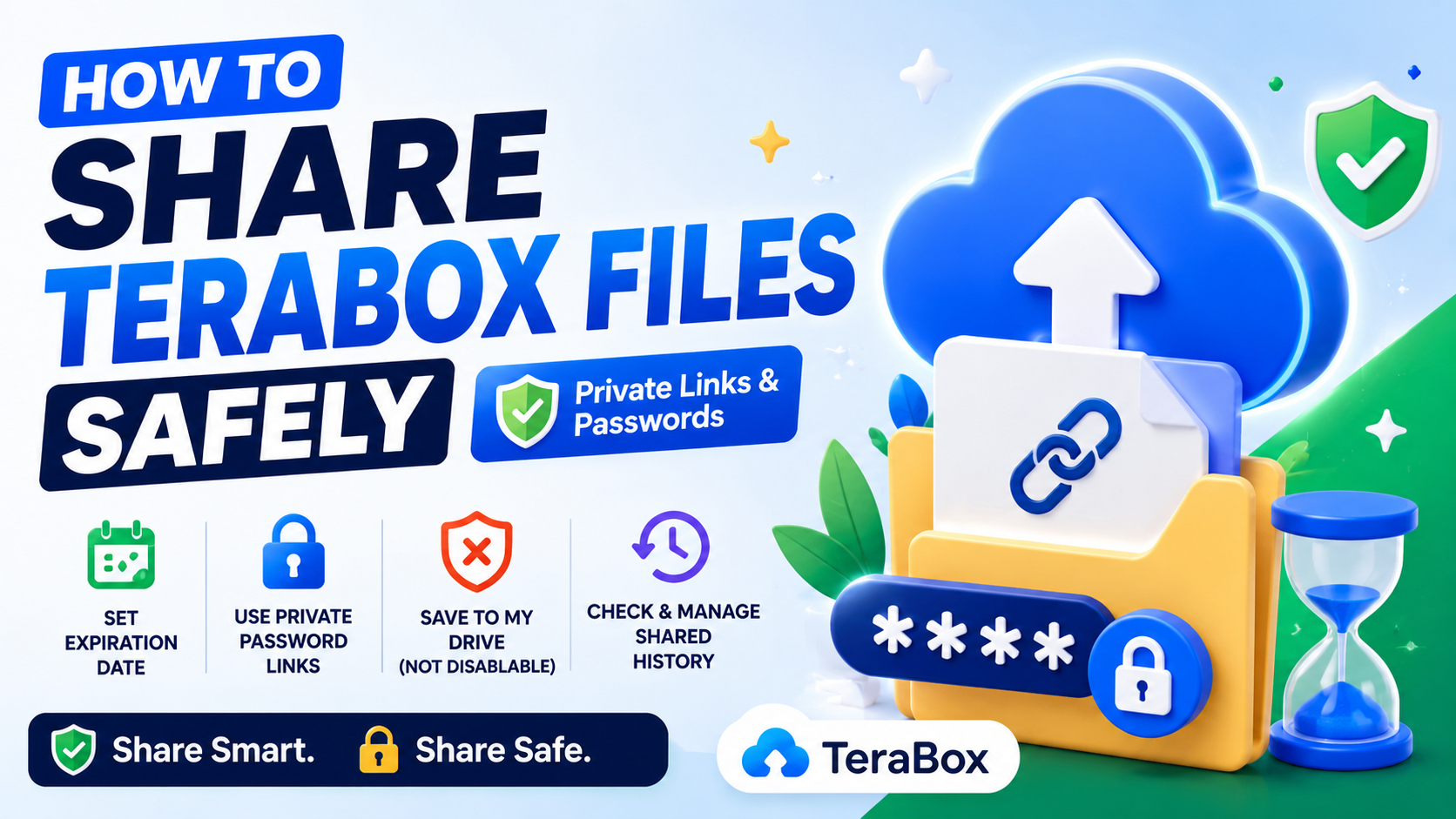
How to Share TeraBox Files Safely in 2026 (Private Links, Passwords & Security Tips)
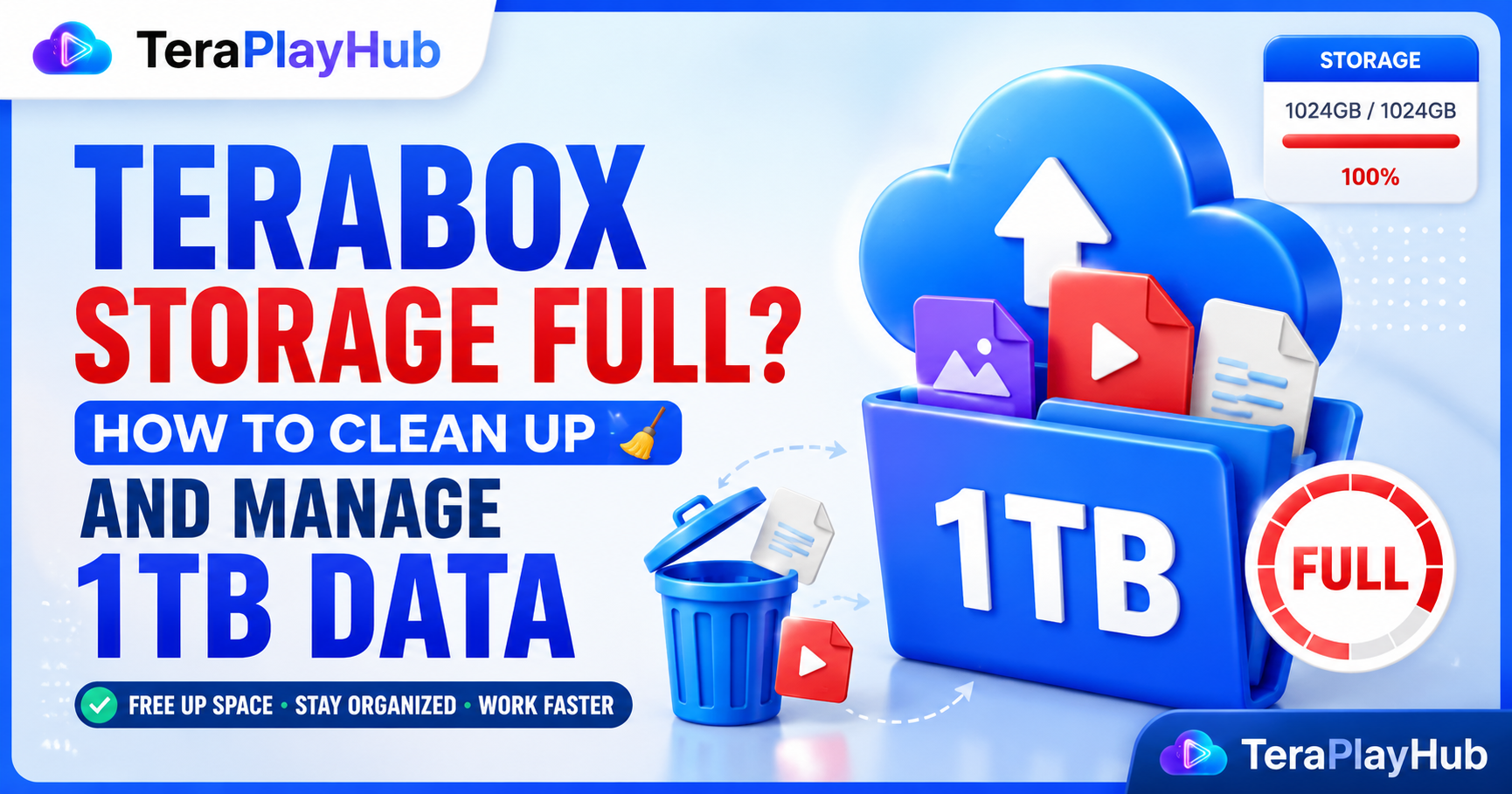
TeraBox Storage Full? How to Clean Up and Manage 1TB Data Efficiently
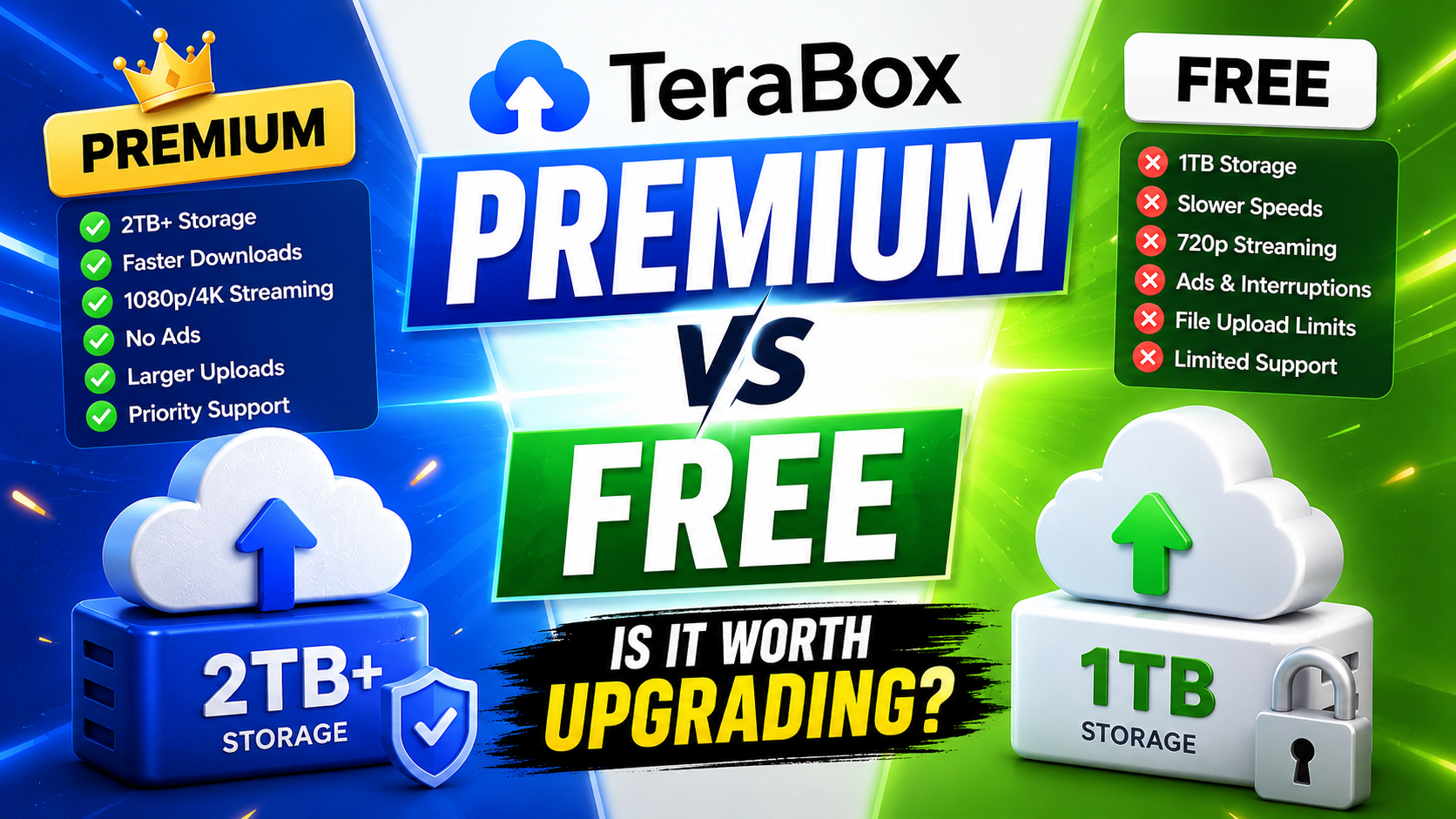
TeraBox Free vs Premium: Is Upgrading Really Worth It in 2026?
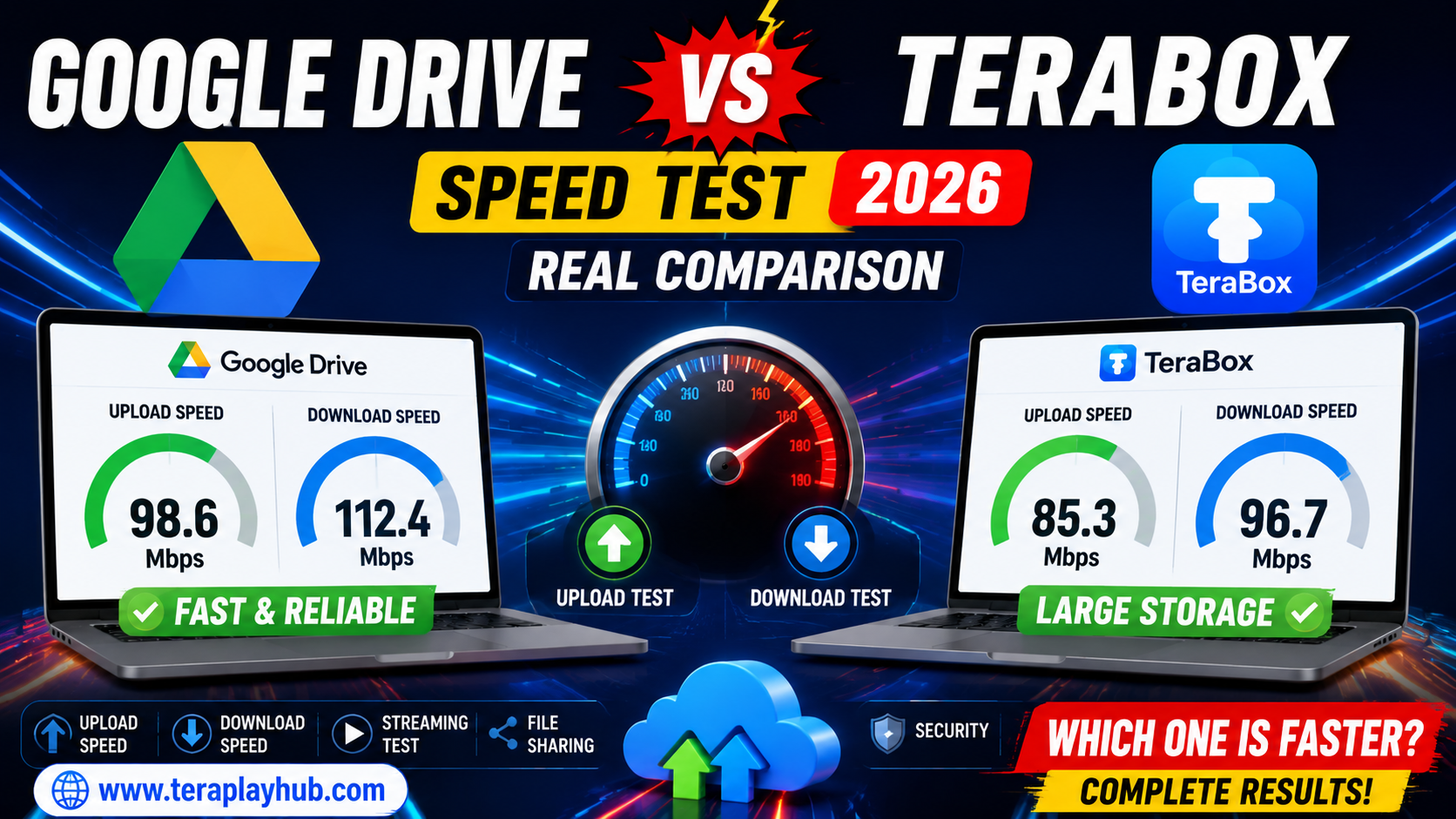
Google Drive vs TeraBox Speed Test (2026 Real Comparison)