Best Free Tools to Convert Video Formats on Android & PC

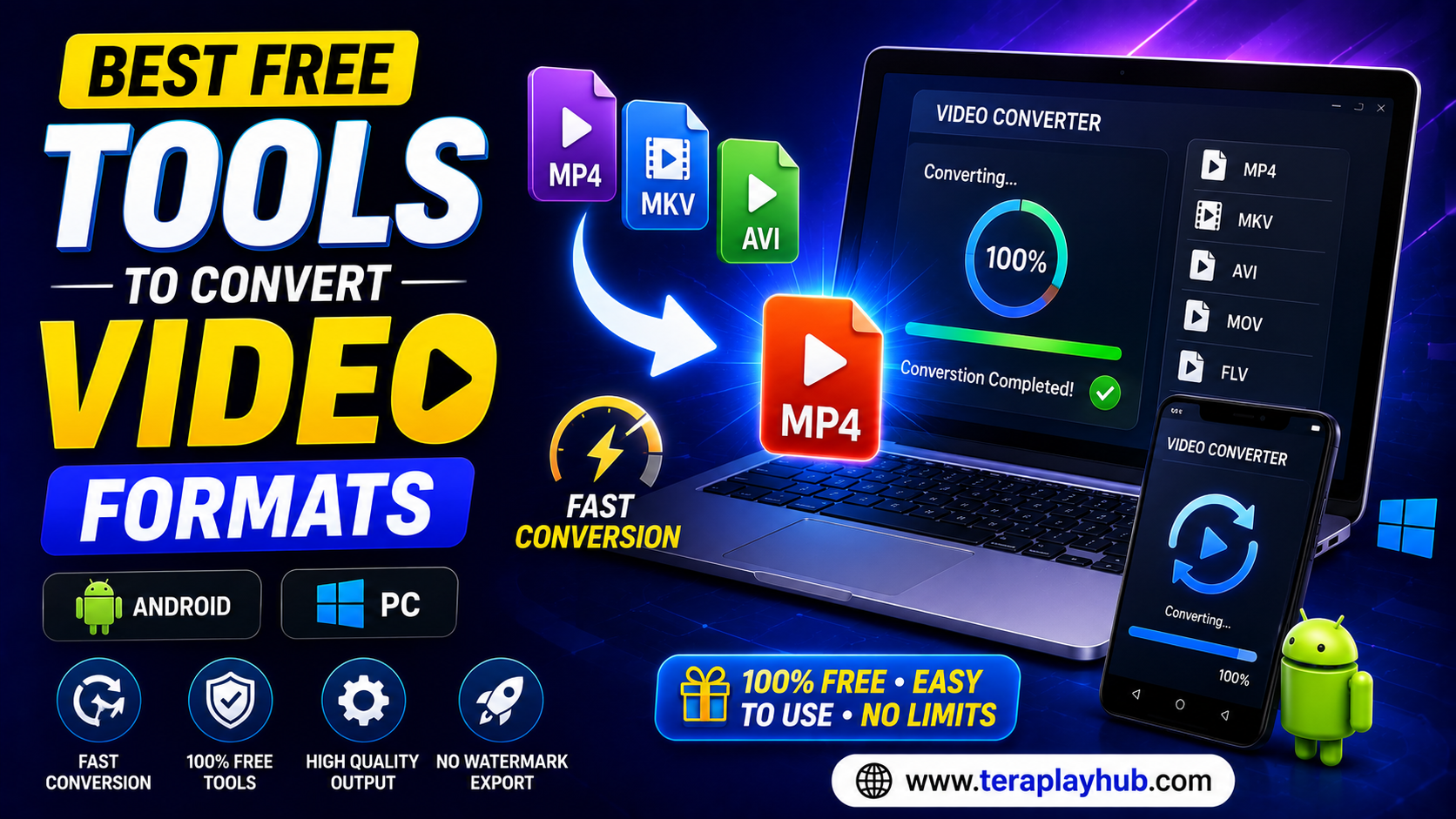
Best Free Tools to Convert Video Formats on Android & PC (2026)
Video files come in many different formats. While some devices can play almost every video type, others may struggle with unsupported formats.
You may have experienced situations where:
- A video won't play on Android
- A movie has no sound
- A file is too large to upload
- A TV doesn't support a specific format
- A video editor refuses to import a file
In most cases, converting the video into another format solves the problem.
Fortunately, there are several excellent free tools available in 2026 that make video conversion quick and simple.
In this guide, we'll compare the best free video converter tools for Android and PC, explain their features, and help you choose the right option for your needs.
Why Convert Video Formats?
Different devices and apps support different video formats.
Common video formats include:
- MP4
- MKV
- AVI
- MOV
- FLV
- WMV
- WebM
Converting videos helps improve:
- Device compatibility
- File size
- Streaming performance
- Editing compatibility
- Playback quality
For example, a large MKV file may work perfectly on a PC but fail to play smoothly on an older Android phone. Converting it to MP4 often solves the issue.
Most Popular Video Format in 2026
MP4 (H.264)
MP4 remains the most widely supported video format because:
- Works on Android devices
- Compatible with Windows PCs
- Supported by Smart TVs
- Plays smoothly on browsers
- Works with most editing software
- Offers a great balance of quality and file size
For most users, converting videos to MP4 is the safest option.
Best Free Video Converter Apps for Android
Android users have several excellent free options.
1. Video Converter by Inverse AI
Overview
One of the most popular video conversion apps available for Android.
Features
- MP4 conversion
- MKV support
- AVI support
- Video compression
- Audio extraction
- Resolution adjustment
Pros
- Easy for beginners
- Fast conversion speed
- Clean interface
- Supports many formats
Cons
- Advertisements in free version
Best For
Everyday Android users looking for a simple solution.
2. VidSoftLab Video Converter
Overview
A lightweight Android app designed for quick video conversions.
Features
- Batch conversion
- Audio conversion
- Resolution settings
- Compression tools
Pros
- Low RAM usage
- Works on older phones
- Fast processing
Cons
- Fewer advanced options
Best For
Budget Android devices and older smartphones.
3. Media Converter
Overview
A flexible converter for both audio and video files.
Features
- MP4 conversion
- Custom format settings
- Audio extraction
- Compression controls
Pros
- Lightweight
- Flexible settings
- Good customization
Cons
- Interface feels slightly outdated
Best For
Users who want more control over output settings.
Best Free Video Converter Software for Windows PC
PC users generally have more powerful conversion tools available.
1. HandBrake
Overview
HandBrake remains one of the most trusted free video converters available.
Features
- MP4 conversion
- MKV conversion
- Hardware acceleration
- Subtitle support
- Video compression
Pros
- Completely free
- Open source
- Excellent output quality
- Frequently updated
Cons
- Learning curve for beginners
Best For
Anyone looking for professional-quality conversions without paying.
2. VLC Media Player
Many users know VLC as a video player, but it can also convert videos.
Features
- Basic video conversion
- Audio extraction
- Lightweight performance
Pros
- Free
- Already installed on many PCs
- Simple for quick tasks
Cons
- Limited conversion features
Best For
Occasional video conversion needs.
3. Any Video Converter Free
Overview
A long-standing favorite among Windows users.
Features
- Multiple format support
- Device presets
- Batch processing
- Basic editing tools
Pros
- User-friendly interface
- Fast conversion
- Beginner-friendly
Cons
- Some premium features locked
Best For
Home users who convert videos regularly.
Best Video Formats for Different Purposes
Choosing the correct format is important.
Best Format for Android
MP4 (H.264)
Benefits:
- Excellent compatibility
- Smooth playback
- Smaller file sizes
- Better battery efficiency
Best Format for Smart TVs
Recommended formats:
- MP4
- MKV
These are supported by most modern televisions.
Best Format for Video Editing
Recommended formats:
- MOV
- MP4
These work well with most editing software.
Best Format for Cloud Storage
MP4
Advantages:
- Smaller size
- Faster uploads
- Easier sharing
- Better compatibility
How to Convert a Video on Android
The process is simple.
Step 1
Install a trusted video converter app.
Step 2
Select the source video.
Step 3
Choose an output format.
Step 4
Adjust quality settings if needed.
Step 5
Tap Convert.
The converted file will be saved automatically.
How to Convert a Video on Windows PC
Step 1
Install a converter such as HandBrake.
Step 2
Open the source video.
Step 3
Choose the output format.
Step 4
Select quality settings.
Step 5
Start the conversion process.
Modern PCs can usually process videos very quickly.
Why Video Conversion Sometimes Fails
Several issues may cause conversion errors.
Common reasons include:
- Corrupted source files
- Unsupported codecs
- Insufficient storage space
- Outdated software
- Interrupted conversions
Updating software often resolves these problems.
Tips for Faster Video Conversion
Use Hardware Acceleration
Modern CPUs and GPUs can significantly speed up conversion.
Close Background Apps
This frees system resources.
Keep Storage Available
Low storage may slow or interrupt conversion.
Use SSD Storage
SSDs process files much faster than traditional hard drives.
MP4 vs MKV: Which Should You Choose?
| Feature | MP4 | MKV |
|---|---|---|
| Compatibility | Excellent | Good |
| File Size | Smaller | Larger |
| Subtitle Support | Good | Excellent |
| Streaming | Excellent | Good |
| Android Support | Excellent | Good |
| Editing Support | Excellent | Good |
For most users:
MP4 is the better choice.
However, MKV can be useful for high-quality movies and advanced subtitle support.
Security Tips When Converting Videos
Always download converter apps from trusted sources.
Avoid:
- Unknown APK files
- Suspicious websites
- Cracked software
- Unverified downloads
These may contain malware or harmful software.
Frequently Asked Questions
Which is the best free video converter in 2026?
HandBrake remains one of the best free video converters available for Windows PC.
What format works best on Android?
MP4 (H.264) provides the best compatibility and performance.
Can I convert MKV to MP4?
Yes. Most converter tools support MKV-to-MP4 conversion.
Does converting reduce video quality?
Not necessarily. Proper settings can maintain excellent quality while reducing file size.
Which video format has the smallest file size?
MP4 with H.264 compression usually provides the best balance between quality and size.
Final Verdict
Video conversion remains an essential task for Android and PC users in 2026.
Whether you want to:
- Fix playback problems
- Reduce file size
- Improve compatibility
- Edit videos more easily
- Upload content to cloud storage
a reliable video converter can save time and frustration.
For Android users, Video Converter by Inverse AI and VidSoftLab are excellent options.
For Windows users, HandBrake remains one of the strongest free tools available.
Choosing the right format—especially MP4—can improve playback performance, compatibility, and storage efficiency across all your devices.
Most Popular Posts
How to Use TeraBox on Smart TV (Samsung, Android TV & Fire TV)
TeraBox for PC: Web Version vs Desktop App (Complete 2026 Comparison Guide)
TeraBox Storage Full? How to Clean Up and Manage 1TB Data Efficiently
How to Share TeraBox Files Safely in 2026 (Private Links, Passwords & Security Tips)
Fix Video Audio Codec Problems on Android & Windows (2026)