TeraBox Storage Full in 2026? Complete Guide to Clean Up and Manage 1TB Storage Efficiently

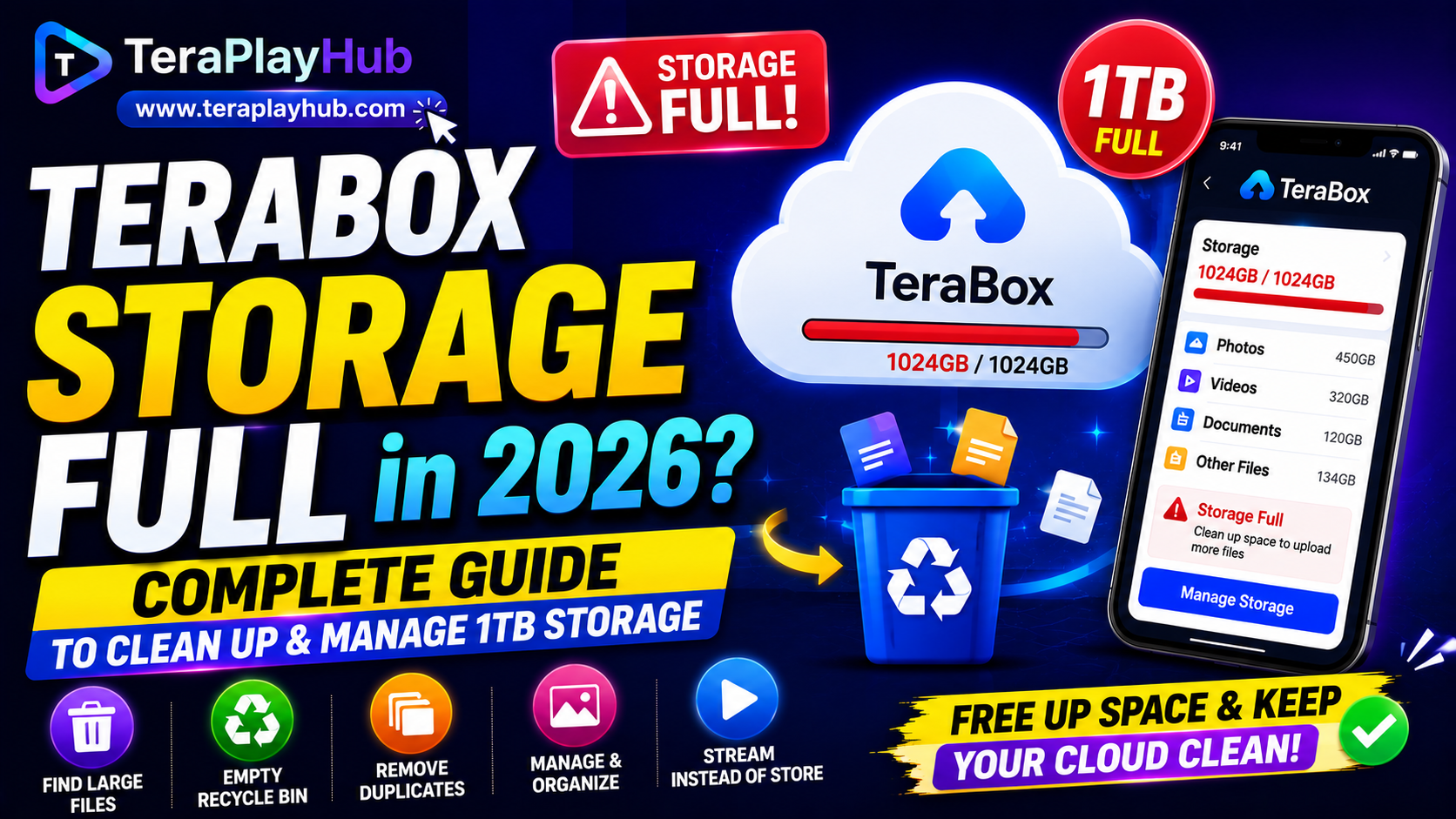
TeraBox Storage Full in 2026? Complete Guide to Clean Up and Manage 1TB Storage Efficiently
Category: Guides
Getting a “Storage Full” warning on TeraBox feels almost impossible at first.
After all, the platform offers up to 1TB of free cloud storage, which sounds unlimited for normal users. But once you start uploading 4K videos, movies, screenshots, backups, Telegram files, and phone gallery syncs, that massive space disappears surprisingly fast.
Many users suddenly realize their storage is almost full without understanding what is consuming so much space.
The good news is:
You usually do NOT need to upgrade immediately.
With proper cleanup and file management, you can recover hundreds of gigabytes within minutes.
In this complete 2026 guide, we will show you how to:
- Find hidden large files
- Remove duplicate content
- Clear unnecessary backups
- Empty recycle bin storage
- Organize your cloud properly
- Prevent storage problems in the future
This guide is written for both beginners and advanced users.
Why TeraBox Storage Gets Full So Quickly
Most people underestimate how quickly modern media consumes storage.
Here are common storage killers:
- 4K mobile videos
- WhatsApp media backups
- Telegram downloads
- Screen recordings
- Anime collections
- PC game backups
- Duplicate photos
- ZIP/RAR archives
- Old APK files
- Automatic camera uploads
For example:
A single 4K smartphone video can easily consume 2GB–6GB.
A few months of automatic backups can silently eat hundreds of gigabytes.
1. Find Large Files First
The fastest way to recover storage is by locating oversized files.
Large forgotten files are usually the biggest problem.
Examples include:
- Old movies
- PC backup folders
- Large ZIP archives
- ISO files
- APK collections
- Video editing exports
- OBS recordings
Best Method
Use the TeraBox Desktop App instead of the web version.
The desktop application usually provides:
- Better file management
- Faster sorting
- Improved upload control
- Easier folder navigation
Sort files by:
- File size
- Upload date
- File type
Many users discover forgotten 10GB–50GB files they no longer need.
Deleting just a few unnecessary large videos can instantly free massive storage space.
2. Empty the Recycle Bin Properly
This is one of the biggest mistakes beginners make.
Deleting files does NOT immediately free storage.
TeraBox keeps deleted files inside the recycle bin temporarily.
Typical recycle bin retention:
- Free users: around 10 days
- Premium users: longer retention period
Those deleted files STILL count toward your storage limit.
How to Empty the Recycle Bin
On Mobile
- Open TeraBox
- Tap your profile
- Open Recycle Bin
- Select unwanted files
- Permanently delete them
On PC
- Open TeraBox Web/Desktop
- Go to Trash/Recycle Bin
- Click “Empty Bin”
You may instantly recover huge amounts of storage.
3. Remove Duplicate Photos and Videos
Phone auto backup often creates duplicate media files.
This happens frequently with:
- WhatsApp images
- Telegram videos
- Downloaded memes
- Screenshot folders
- Camera sync issues
- Shared album backups
Over time, duplicates waste enormous cloud space.
Use Space Analyzer Tools
Some versions of the TeraBox app include storage analysis features.
These tools can help identify:
- Duplicate files
- Similar photos
- Large media
- Temporary files
Delete duplicates carefully to avoid removing important memories.
4. Disable Unnecessary Auto Backup
Many users unknowingly upload junk files automatically.
This slowly fills storage without realizing it.
Folders you usually SHOULD NOT back up:
- Downloads folder
- Meme folders
- App cache
- Game files
- Temporary screenshots
- Social media cache
Recommended Backup Settings
Keep automatic backup ONLY for:
- Camera photos
- Important videos
- Documents
- Work files
This keeps storage clean and manageable.
5. Organize Files Into Proper Folders
Disorganized storage causes confusion and duplicate uploads.
Instead of dumping everything into one location, create categories.
Recommended structure:
- Photos
- Movies
- Documents
- Study Notes
- APK Files
- Personal Videos
- Work Backups
- Temporary Files
Better organization helps you:
- Find files faster
- Avoid duplicate uploads
- Delete unnecessary content easily
6. Compress Large Videos Before Uploading
Videos consume more space than almost anything else.
Before uploading videos:
- Compress them
- Convert formats
- Reduce bitrate
- Remove unnecessary quality
Best Video Compression Tools
PC
- HandBrake
- FFmpeg
- VLC Converter
Android
- Panda Video Compressor
- Video Compressor apps
iPhone
- Compress Videos & Resize Video
Recommended Format
Use:
- H.265 / HEVC
- MP4 format
This can reduce video size by 40%–70% without huge quality loss.
7. Stream Instead of Storing Everything
One of the smartest storage habits is avoiding permanent storage for temporary content.
Ask yourself:
Do you really need to keep every movie forever?
If you only watch something once, streaming may be better than storing huge files permanently.
Platforms like TeraPlayHub allow users to watch many shared videos directly online without downloading massive files repeatedly.
This helps save:
- Cloud storage
- Device storage
- Mobile data
8. Delete Old APK and ZIP Files
APK collections and compressed archives quietly consume huge storage.
Examples:
- Old Android apps
- ROM backups
- ZIP game packs
- RAR movie archives
After installation or extraction, these files are often forgotten.
Review them monthly.
9. Monitor Storage Every Month
Storage problems become much easier when handled regularly.
Instead of waiting until storage reaches 99%, perform small cleanups every month.
Recommended Monthly Cleanup Checklist
Every Month:
- Empty recycle bin
- Delete duplicate photos
- Remove temporary downloads
- Compress large videos
- Delete old APK files
- Organize folders
- Review backups
- Remove unused movies
Regular maintenance prevents future headaches.
Signs Your TeraBox Needs Cleanup
Watch for these warning signs:
- Slow uploads
- Upload failures
- “Storage Almost Full” notifications
- Backup errors
- Sync issues
- Duplicate file confusion
Cleaning storage often improves overall cloud performance.
Is Upgrading to Premium Worth It?
For many casual users:
Probably NOT immediately.
Most people can free massive storage by simply organizing files properly.
However, Premium may help if you:
- Upload daily 4K content
- Store professional video projects
- Use cloud backup heavily
- Need faster uploads
- Need longer recycle bin retention
Final Thoughts
Even though 1TB sounds enormous, modern media files can fill cloud storage surprisingly quickly.
Fortunately, most TeraBox storage problems are easy to solve with proper cleanup habits.
By:
- Removing duplicate files
- Emptying recycle bin data
- Compressing videos
- Organizing folders
- Managing backups properly
You can keep your cloud storage clean, fast, and efficient without paying for unnecessary upgrades.
Good storage habits save time, reduce confusion, and improve your overall cloud experience in 2026.
Most Popular Posts

How to Use TeraBox on Smart TV (Samsung, Android TV & Fire TV)

TeraBox for PC: Web Version vs Desktop App (Complete 2026 Comparison Guide)
How to Share TeraBox Files Safely in 2026 (Private Links, Passwords & Security Tips)
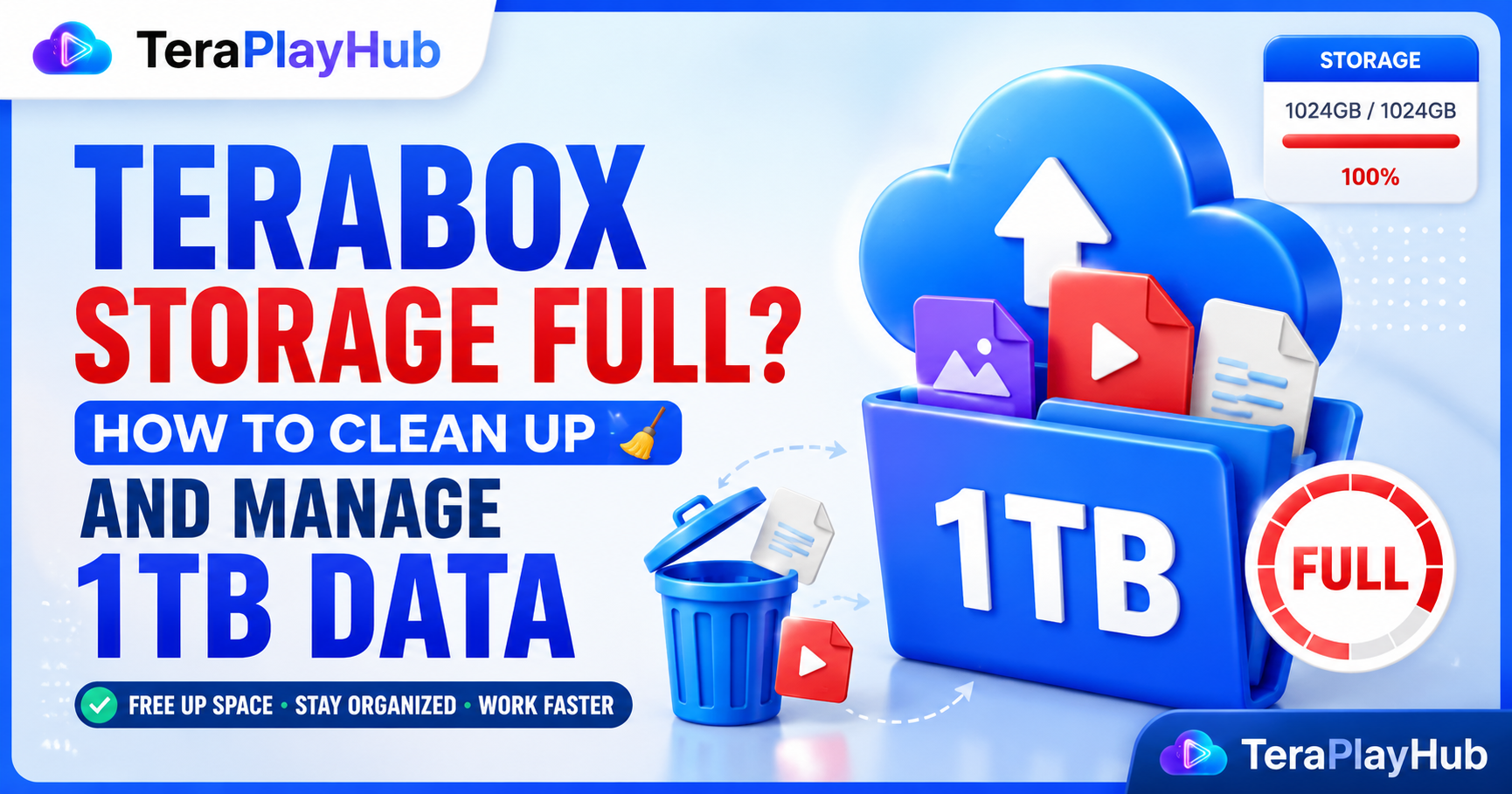
TeraBox Storage Full? How to Clean Up and Manage 1TB Data Efficiently
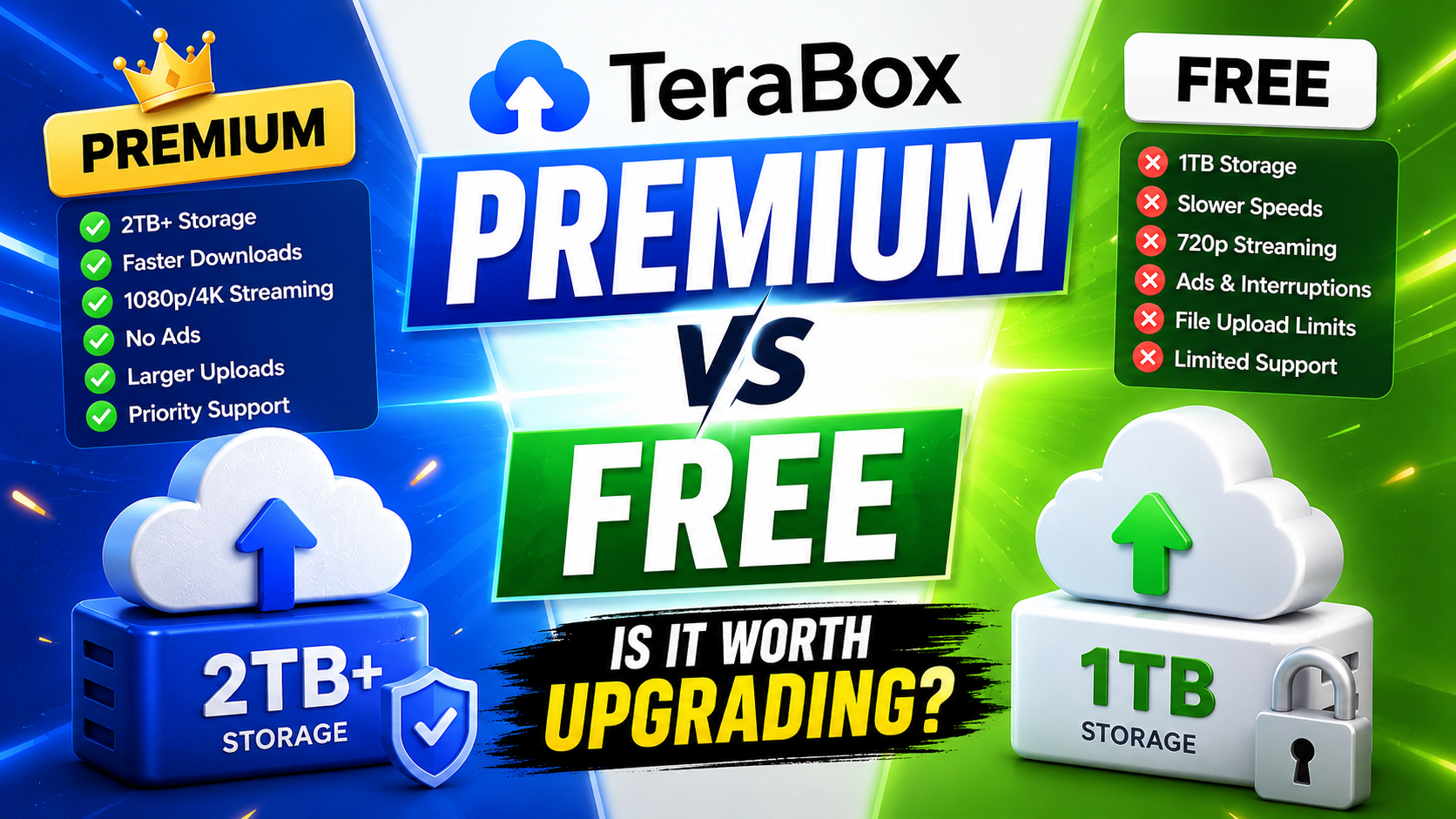
TeraBox Free vs Premium: Is Upgrading Really Worth It in 2026?